
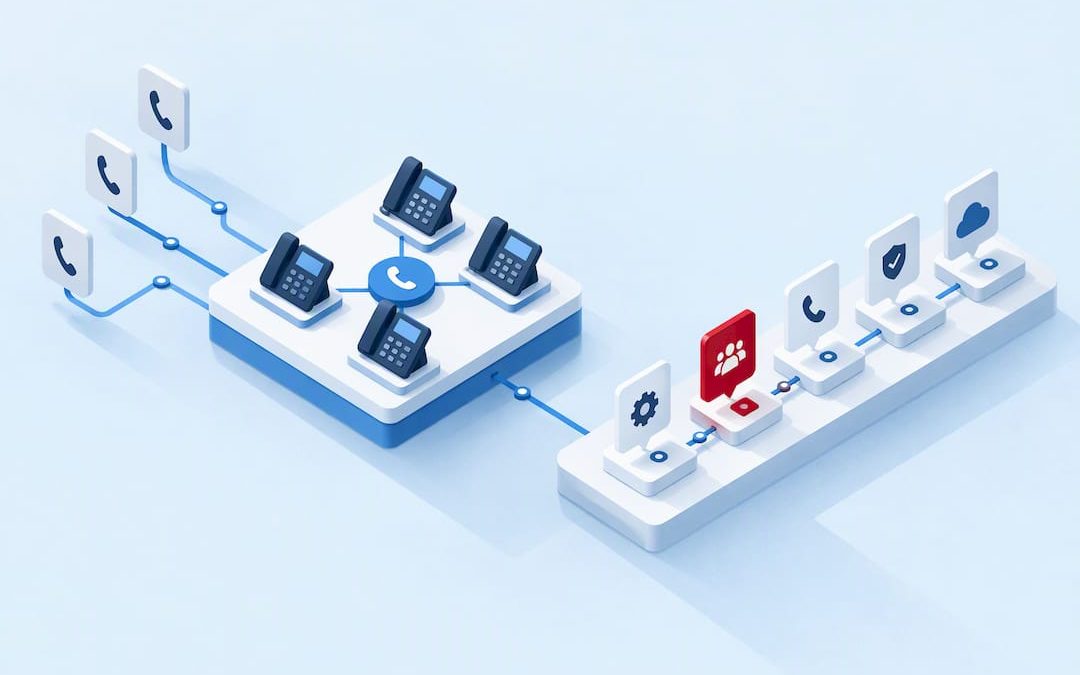
A call pickup group lets authorised colleagues answer a ringing desk phone or soft client on another team member’s behalf, using a feature code, a toolbar action, or a visual alert. It is the right tool for small teams that need simple peer coverage, not high-volume queueing. The main thing to plan around: colleagues who don’t answer often still see a missed-call entry, which is usually intentional rather than a fault.
TL;DR:
- Pickup groups are suitable for small teams needing simple peer coverage, with Microsoft Teams supporting up to 25 members, switching to simultaneous ringing beyond five.
- Call pickup on desk phones usually requires dialing a feature code, while soft clients allow a single-click pickup via on-screen prompts, though notification behaviour varies across device types.
- Mismatch in partition and calling search space settings on CUCM or not recreating groups after device moves are common causes of pickup failure, with many issues resolved by reconfiguration.
- Missed-call notifications appear even when calls are answered by colleagues, which can cause staff confusion; clear group naming and staff briefings help mitigate this issue.
- For organizations with higher volume or accountability needs, call queues offer detailed metrics, routing control, and scalability, unlike pickup groups which are best for informal coverage.
Table of Contents
- How call pickup groups work: user flow and mechanics
- Administration and configuration: where and how to set pickup groups
- When to use pickup groups and when to choose call queues or ring groups
- Common problems and field fixes (CUCM, Teams and generic SIP examples)
- Notification behaviour and staff UX: managing missed calls and confusion
- Worked example: implementing pickup groups on a telco-grade cloud platform
- Author perspective: when pickup groups are the pragmatic choice
- How Vadacom can help with pickup groups and cloud telephony
- FAQ
- Sources
- Primary vendor docs and community threads used as reference
How call pickup groups work: user flow and mechanics
Two pickup methods dominate. On a desk phone, a user dials a feature code (often something like *4 or GPickUp#) to grab a call ringing on a colleague’s extension. On a soft client, the same action is usually a single click on a banner or a “pickup” button that appears when a group member’s line rings.
Ring order depends on group size and platform rules. Microsoft Teams, for example, rings members **in order up to five people. Once a group exceeds five members, it switches to ringing everyone simultaneously, according to Microsoft Learn. Some platforms also apply a “longest ringing” rule, prioritising whichever call has waited the longest when multiple lines ring at once.
Notification behaviour varies by device type:
- SIP desk phones typically support only basic ring and mute states, with no rich visual alert.
- Soft clients can show banners, caller ID and group context, giving staff more information before they answer.
- Mixed estates (some SIP phones, some soft clients) mean behaviour is inconsistent across the same group, which is worth testing before rollout.
Administration and configuration: where and how to set pickup groups
Pickup groups are configured in whichever admin portal sits in front of the phone system: the Microsoft Teams admin centre, a Cisco Unified Communications Manager (CUCM) console, or a cloud provider’s own portal. Microsoft documents both portal-based setup and PowerShell cmdlets such as Set-CsUserCallingSettings for scripted or bulk configuration, according to Microsoft Learn.
A typical setup sequence looks like this:
- Confirm each user has the correct licence and calling mode assigned (for Teams, this means “Teams Only” mode) before adding them to a group.
- Create the group and set it to one named owner, since most platforms allow a user to own only one call group at a time.
- Add members, respecting the platform’s maximum group size, Teams caps groups at 25 users, according to Microsoft Learn.
- Set the notification mode and verify it against the actual devices in use, not just the policy setting.
- Test pickup from at least one SIP phone and one soft client before announcing the group to staff.
Pro Tip: Document group membership and ring behaviour somewhere staff can see it, so a new hire doesn’t learn the pickup rules by missing a customer call.
When to use pickup groups and when to choose call queues or ring groups
Pickup groups suit low-volume, informal coverage: a small sales team, a reception desk with a backup, or a department where anyone can reasonably answer anyone else’s call. They’re quick to set up and need no reporting layer.
Call queues earn their complexity when volume or accountability matters more. They’re built for customer-facing lines where overflow handling, hold music, and service-level reporting matter, a distinction one comparison of queues and ring groups makes clearly: pickup is peer coverage, queues are a routing and reporting system.
A quick way to decide:
- Visibility: pickup groups offer almost none; queues give call logs, wait times and abandonment data.
- Routing control: pickup is manual and reactive; queues support skills-based or round-robin routing.
- Scalability: pickup groups degrade past a handful of members; queues are built for volume.
- Admin overhead: pickup groups are near-zero maintenance; queues need ongoing tuning.
Common problems and field fixes (CUCM, Teams and generic SIP examples)
Most pickup group failures trace back to one of a few causes, and the fixes are usually mechanical rather than mysterious.
- Check Partition and Calling Search Space (CSS) settings on CUCM. A mismatch between the pickup group’s partition and the calling device’s CSS is a common cause of calls simply not offering pickup at all, a pattern documented in field reports on Cisco Community.
- Delete and recreate the group after device moves or profile changes. When phones move locations or get reassigned device profiles, their binding to the pickup group can become stale. Recreating the group forces CUCM to rebind devices correctly, which resolves pickup invisibility in many reported cases.
- Use the Dialed Number Analyzer (DNA) to confirm routing. If DNA reports “Block This Pattern” for a pickup group number even though the same pattern routes correctly as a Directory Number, that’s a strong signal the group mapping is broken rather than the dial plan.
- Check vendor logs and PowerShell cmdlets for cloud platforms. On Teams, confirm licensing, calling mode and group membership with
Get-CsUserCallingSettingsstyle checks before assuming a client-side fault. - Treat missed-call notifications as a behaviour to confirm, not automatically a bug. Community threads on Microsoft Q&A indicate this is intentional on many platforms.
Pro Tip: When a pickup group “stops working” after an office move, recreate the group before you start digging through logs. It resolves the issue more often than any other single fix.
Notification behaviour and staff UX: managing missed calls and confusion
Non-answering group members frequently see a missed-call entry even when a colleague picked up the call successfully. Community and vendor threads confirm this is usually by design, not a fault, since many platforms mark the call as “handled” for the group while still logging it against everyone who was rung, according to Microsoft Q&A.
The practical issue is staff confusion, not a technical one. A few steps reduce it:
- Name groups clearly so staff immediately understand scope (“Reception Backup”, not “Group3”).
- Brief staff once on why missed-call badges appear even when someone else answered.
- Use soft clients where possible, since they show richer context than SIP phones can.
- Disable notifications selectively for members who don’t need to track every group call.
Worked example: implementing pickup groups on a telco-grade cloud platform
A cloud-hosted phone system can host pickup groups with the same self-service logic as any admin portal, but with fewer moving parts behind it. On a platform built across multiple availability zones, group membership and ring settings live centrally, so a device outage in one location doesn’t strand a pickup group’s configuration.
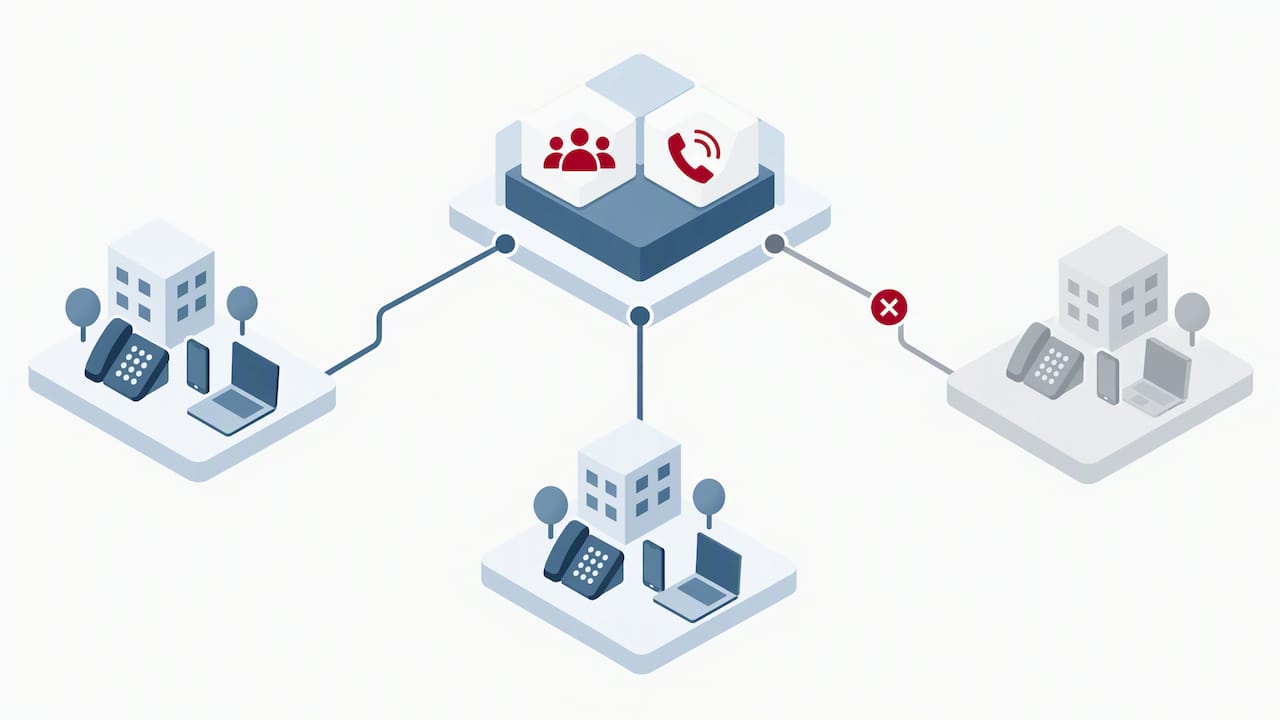
The practical advantages show up in day-to-day admin work: no on-premise call manager to patch, support for mixed estates of desk phones and soft clients without separate configuration paths, and local support when a group’s behaviour doesn’t match expectations. For organisations still running legacy on-premise systems, a technical audit is a practical first step before attempting to replicate pickup group logic in a cloud environment, since migration decisions are easier once the current call-flow setup is documented.
Author perspective: when pickup groups are the pragmatic choice
Pickup groups work best for small, trusted teams covering each other informally. The moment you need reporting, SLAs, or overflow handling, move to a queue instead of forcing pickup groups to do a job they weren’t built for. My rollout advice: pilot with one team, watch the logs for a week, brief staff on missed-call behaviour before launch, and adjust membership once real call patterns show who actually answers.
— Stuart
How Vadacom can help with pickup groups and cloud telephony
We built NextVoice to handle exactly this kind of configuration without the overhead of on-premise hardware. Group membership, call flows and notification settings are managed through self-service admin tools, so changes that would once need a technician’s visit happen in minutes.

A cloud architecture running across multiple availability zones means a pickup group’s configuration doesn’t depend on a single piece of office hardware staying online. For teams wanting deeper insight into how calls are actually handled once they reach a group, our optional AI Call Intelligence adds recording and analysis on top of the base platform. If you’re still running an older on-premise system and want to know what a move to cloud telephony would involve, request a technical audit and we’ll walk through your current setup with you.
FAQ
What is a call pickup group in Cisco Call Manager?
In CUCM, a call pickup group is a set of directory numbers that can answer each other’s ringing calls using a feature code or softkey. Group membership, partitions and Calling Search Spaces all need to align, since a mismatch between these settings is a common cause of pickup failing, as documented in Cisco Community troubleshooting threads.
Can you do group calls on a phone?
Yes, most desk phones and soft clients support group call pickup through a feature code or an on-screen prompt when a colleague’s line rings. The exact method depends on the phone system and device type, with soft clients generally offering richer visual cues than basic SIP handsets.
How do I pick up a call from another telephone?
On a desk phone, dial the group’s pickup feature code (commonly something like *4 or GPickUp#) while the other line is ringing. On a soft client, a pickup prompt or banner usually appears automatically, letting you answer with a single click.
How do I make a call group?
Create the group in your phone system’s admin portal, whether that’s the Microsoft Teams admin centre, a CUCM console or a cloud provider’s own interface, then add members and set a ring strategy. Microsoft Teams caps groups at 25 users and switches to simultaneous ringing once membership exceeds five people, according to Microsoft Learn.
Should I use a pickup group or a call queue?
Choose a pickup group for informal peer coverage among a small team, and a call queue when you need reporting, overflow handling or service-level tracking for customer-facing lines. A comparison of queues and ring groups sets out this distinction in more detail for teams weighing both options.
Sources
- Call sharing and group call pickup – Microsoft Teams | Microsoft Learn
- Call Pickup issue on CUCM 12.5 – Cisco Community
- Has the call group function changed in Teams? – Microsoft Q&A
Primary vendor docs and community threads used as reference
The claims and troubleshooting steps above draw on Microsoft’s own documentation for Teams call groups, a Microsoft Q&A thread on missed-call behaviour, and a Cisco Community thread covering CUCM pickup failures after phone moves. These sources go into more detail than this guide covers and are worth reading directly if you’re configuring a group for the first time.