
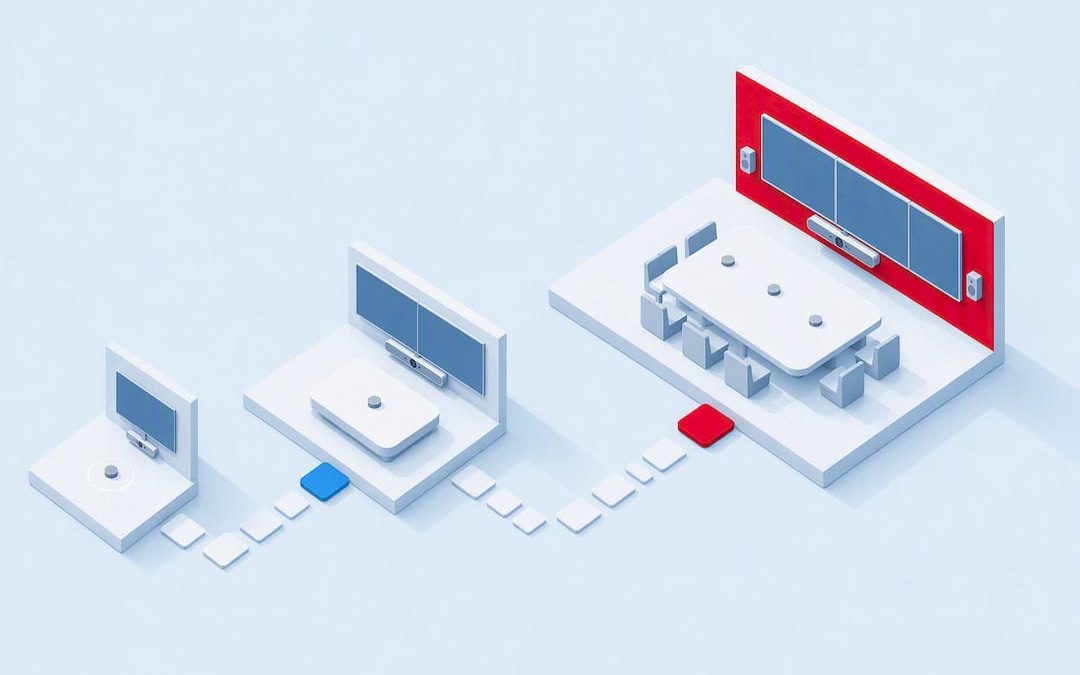
An effective hybrid meeting room puts audio first, mounts cameras at eye level, and gives remote attendees a dedicated gallery view. Start by classifying the room as a huddle, standard, or large space, then set the microphone and speaker budget before you spend a dollar on displays. Wired network backhaul isn’t optional. Follow Microsoft’s own guidance for Teams Rooms as a baseline, and lean on locally supported cloud tools to keep the whole system manageable once it’s live.
TL;DR:
- Proper microphone placement and acoustic treatment are critical, especially in larger rooms, to prevent remote participants from losing engagement due to audio issues.
- Mount cameras at eye level and centre them on the seating area to create a natural line of sight; wide-angle, auto-framing, or multi-camera setups depend on room size and shape.
- Dual displays improve hybrid experience by showing shared content and remote attendee gallery simultaneously, with size tailored to room depth rather than capacity.
- Wired network backhaul and dedicated VLANs are essential to ensure stable video and audio, while Wi-Fi alone often causes unacceptable latency and packet loss.
- Regular pre-meeting checks, firmware management, and a simple troubleshooting protocol help maintain long-term reliability and a consistent hybrid experience.
Table of Contents
- Hybrid meeting room setup checklist by room type
- Why audio quality decides whether remote attendees stay engaged
- Where should you mount the camera in a meeting room?
- Single screen or dual displays: what actually works
- Lighting basics that stop presenters looking like silhouettes
- How seating layout affects who gets seen and heard
- What network setup does a hybrid meeting room need?
- Should you standardise on one platform or allow BYOD?
- What does a hybrid meeting room actually cost to build?
- How do you keep hybrid rooms running once they’re installed?
- Making hybrid meetings accessible to every participant
- Pre-meeting checklist: what to test before every important call
- Vadacom’s take on keeping hybrid rooms reliable long-term
- Where to go for more detail
- Sources
- FAQ
Hybrid meeting room setup checklist by room type
Most facility teams overspend on the wrong room type or underspend on audio because nobody classified the space first. Sort your rooms into three tiers before ordering anything.
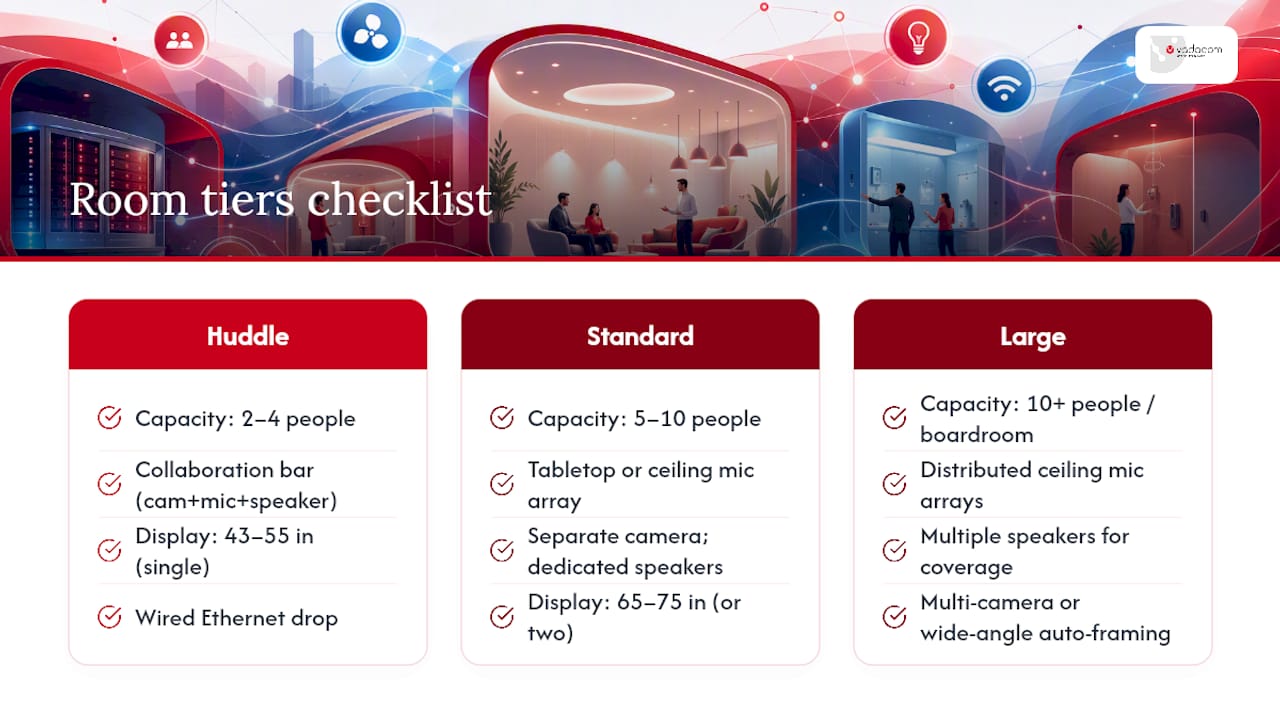
Huddle rooms (2 to 4 people): a single collaboration bar with an integrated camera, mic, and speaker; one display (43 to 55 inches); wired Ethernet drop; minimal cabling since most gear mounts under or beside the screen.
Standard rooms (5 to 10 people): tabletop or ceiling mic array separate from the camera; dedicated speakers; one 65 to 75 inch display, or two displays if the room hosts frequent hybrid calls; PoE switch port for the camera and any ceiling devices.
Large rooms (10+ people or boardrooms): distributed ceiling mic arrays, multiple speakers for even coverage, multi-camera setup or a wide-angle unit with auto-framing, dual large-format displays, and a dedicated AV rack.
Before installation day, confirm four things on-site: power outlets near the display and table, a network drop that doesn’t require a Wi-Fi bridge, ceiling access for mic and speaker mounts, and clear sightlines from every seat to both the camera and the content screen.
Why audio quality decides whether remote attendees stay engaged
Audio failures cause more remote disengagement than any camera or display shortfall. Practitioners building these rooms from scratch consistently point to microphone coverage and acoustic treatment as the fix worth prioritising when budgets are tight, ahead of chasing a sharper camera image, according to CenturyAV’s build guide. If remote participants can’t hear someone at the far end of the table clearly, they check out, regardless of how good the video feed looks.
The common failure modes are predictable: a single laptop mic trying to cover a 10-person room, speakers placed too close to the mic causing echo, and hard surfaces (glass walls, bare tables) bouncing sound into a muddy mess.
Match your mic strategy to room size:
- Huddle rooms work fine with the built-in mic array on a collaboration bar, since everyone sits within a couple of metres of it.
- Standard rooms need either a tabletop mic pod placed centrally, or a ceiling beamforming array that tracks whoever’s talking without visible hardware on the table.
- Large rooms and boardrooms need distributed ceiling arrays, because a single mic point creates uneven pickup and what one AV guide calls a “remote voice beaming” effect, where people near the mic sound fine and everyone else sounds distant, per Vibe’s conference room AV guide.
- Presenters moving around the room need a lavalier or handheld mic in addition to the room system, especially for training sessions or town halls.
Keep speakers away from mic pickup zones to avoid feedback loops, and test by having someone speak from the farthest seat while another person joins remotely on their phone to listen back.
Pro Tip: Run a two-minute “worst seat” test before every major meeting series launches. Sit in the corner furthest from the mic and speak at a normal volume. If the remote caller has to ask you to repeat yourself, your mic coverage isn’t finished yet.
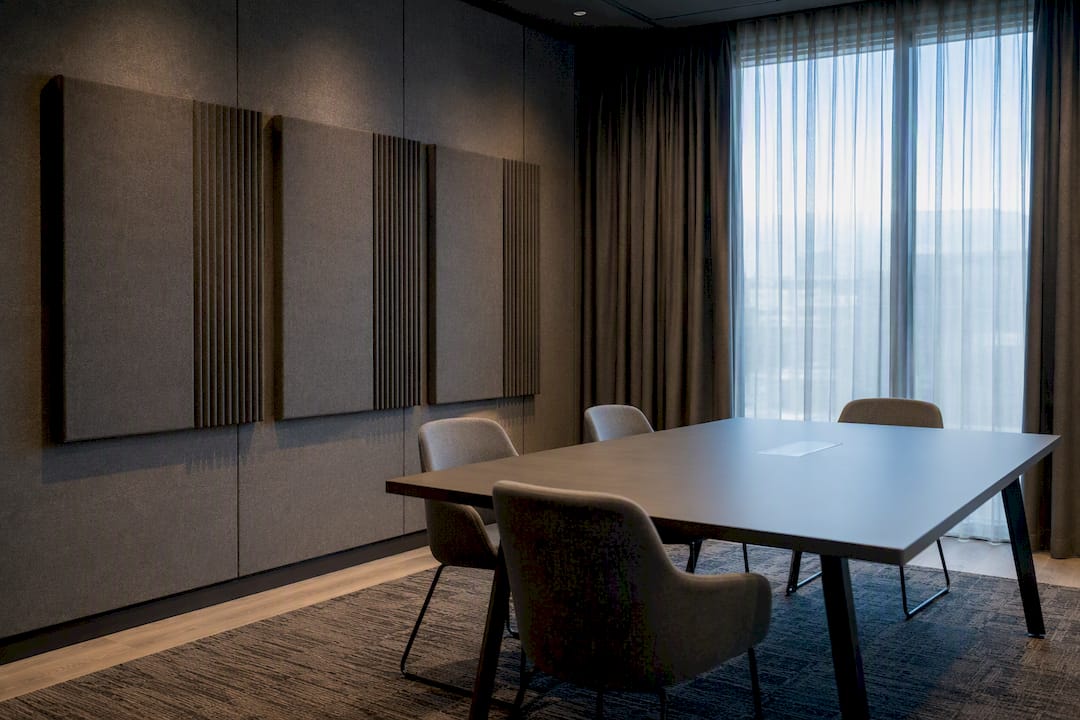
Simple acoustic treatment goes a long way: acoustic panels on hard walls, a rug or carpet tile if the floor is bare, and curtains on any glass that faces the table. None of this needs to look like a recording studio. It just needs to stop sound bouncing around long enough for the mic to capture a clean signal.
Where should you mount the camera in a meeting room?
Mount the camera at or near eye level, centred on the seating area, not perched on top of a low credenza or angled down from a corner. AV specialists who build these rooms for a living are consistent on this point: eye level and centred creates a natural line of sight for remote participants, so it feels like the room is looking at them rather than down at them, according to SPOR’s hybrid room setup guide. A table-mounted camera pointed up someone’s nose is one of the fastest ways to make a hybrid meeting feel amateurish.
Camera choice depends on room shape and use case:
- Wide-angle fixed cameras suit huddle and small standard rooms where everyone fits comfortably in one frame.
- AI auto-framing cameras track who’s speaking and adjust the crop automatically, useful in standard rooms with a mix of seated and standing participants.
- PTZ (pan-tilt-zoom) or multi-camera arrays suit large rooms and boardrooms, where one fixed angle can’t cover both a long table and a whiteboard wall.
- Multiple cameras are worth the extra cost once a room regularly hosts hybrid events or all-hands sessions, since a single lens can’t cover a large audience and a presenter at the same time, per Microsoft’s guidance on hosting events in Teams Rooms.
Whichever camera you choose, mount it directly above or beside the gallery display so remote faces line up with where the in-room camera is pointing. Run cabling inside conduit or trunking rather than across the floor. A camera that’s technically correct but wired like an afterthought undermines the room’s credibility the moment a visitor walks in.
Single screen or dual displays: what actually works
Dual displays are the single change AV practitioners cite most often as the biggest upgrade for rooms used frequently for hybrid work, according to SPOR. One screen carries shared content (slides, documents, whiteboards), the other shows the video gallery, so in-room attendees can see remote faces at the same time as the material being discussed instead of toggling between the two.
Sizing follows room depth, not room headcount:
- Huddle rooms: one 43 to 55 inch display is enough, since the back seat is rarely more than 3 metres away.
- Standard rooms: one 65 to 75 inch display if budget is tight, or two 55 to 65 inch displays side by side for content and gallery.
- Large rooms: dual displays of 75 inches or larger, positioned high enough that the back row can read text without leaning forward.
Use commercial-grade displays rather than consumer TVs. They run longer duty cycles, handle glare better with anti-reflective coatings, and typically support remote monitoring, which matters once you’ve got a dozen rooms to manage.
Lighting basics that stop presenters looking like silhouettes
Skip a full production rig. A simple three-point setup, key light on the face, fill light to soften shadows, and even ambient light across the room, covers most needs. The one rule that actually matters: never seat presenters with a window or bright light behind them, because cameras will expose for the background and turn the person into a shadow.
- Check for even lighting across all seats, not just the one closest to the camera.
- Use ceiling-mounted LED panels rather than a single overhead downlight, which creates harsh shadows under eyes.
- Run a quick camera preview before the meeting starts and adjust blinds or lamps if anyone looks blown out or too dark.
- Avoid mixing warm and cool colour temperature bulbs in the same room, since cameras struggle to white-balance correctly.
How seating layout affects who gets seen and heard
Table shape and seating position decide whether a hybrid meeting feels inclusive or like remote attendees are watching through a window. Get the geometry right before you worry about anything else in the room.
- Rectangular tables: place the camera and gallery display at one end, facing down the length of the table, so every seat is visible in a single frame.
- Round or oval tables: centre the camera on the table’s midpoint, and use a ceiling mic array rather than a single tabletop pod, since a round table spreads voices evenly in all directions.
- U-shaped or boardroom layouts: use multiple cameras or a wide PTZ unit, since a single fixed lens can’t capture both ends of a U-shape without distorting the middle.
- Mic spacing: keep tabletop mics no more than 2 to 2.5 metres apart to avoid dead zones, and route their cabling alongside PoE runs rather than crossing walkways.
Sightlines matter more than most teams expect. If half the room can’t see the gallery display without turning their chair, remote colleagues become background noise rather than participants. A five-minute chair reshuffle after installation often fixes engagement problems that look like a technology fault.
What network setup does a hybrid meeting room need?
Wired Cat6 or Cat6A backhaul is the baseline for any room used regularly for hybrid calls. Wi-Fi alone introduces enough latency and packet loss to cause the frozen frames and robotic audio that make video calls unbearable, especially in open-plan offices with dozens of competing devices.
- Run a dedicated AV VLAN to separate meeting room traffic from general office data, which limits congestion and improves security.
- Use PoE or PoE+ switches to power cameras, mics, and ceiling speakers without a separate power supply for every device.
- Size switch capacity for growth. A room that starts with one camera often adds a second camera, a scheduling panel, and a room control touchpad within a year.
- Budget bandwidth per call. Standard video conferencing typically needs enough consistent throughput to handle 1080p video without contention from other traffic on the same link.
- Enable QoS (quality of service) rules to prioritise real-time audio and video packets over file downloads or background syncing.
- Plan for remote firmware updates. Devices that can’t be patched centrally become a support headache the moment you’re managing more than two or three rooms.
Should you standardise on one platform or allow BYOD?
Certified room systems built for Microsoft Teams or Zoom give you a tested, single-vendor experience: consistent joining, predictable performance, and clear support paths. Standardising this way makes sense when most meetings run on one platform and IT wants centralised control.
- BYOD (bring your own device) setups suit organisations that regularly host clients or partners on different platforms, since anyone can plug in and share their own screen without a compatibility scramble.
- A mixed approach, native room systems in most rooms with one flexible BYOD-capable room for external meetings, covers most mid-sized offices well.
- Licensing and management get more complex with multi-platform support, since IT needs to test and patch across more software combinations.
- Training staff on one consistent interface (a single certified system) reduces support tickets far more than adding features ever will.
What does a hybrid meeting room actually cost to build?
Budget shape should mirror the priorities above: audio first, network second, camera and display third. A huddle room with a collaboration bar, one display, and basic cabling sits at the low end of the spectrum. A large boardroom with distributed audio, dual displays, and multi-camera coverage sits well above it, largely driven by ceiling mic arrays and additional cabling runs.
- Assessment (week 1 to 2): classify each room, check power and network readiness, confirm sightlines and acoustic conditions.
- Procurement (week 2 to 4): order hardware, confirm platform licensing, and lock in an installation date with either an internal team or an integrator.
- Installation and testing (week 4 to 6): mount hardware, run cabling, configure network VLANs, and test every room with a real remote caller before sign-off.
- Training (week 6 to 7): run short sessions for meeting hosts and frequent users, covering the checklist items in the sections above.
Self-install suits huddle rooms and simple collaboration bars, since the hardware is largely plug-and-play, per KramerAV’s setup tips. Standard and large rooms generally need an integrator, given the ceiling work, multi-device cabling, and acoustic treatment involved, as recommended in CenturyAV’s build guide.
How do you keep hybrid rooms running once they’re installed?
Rooms that work perfectly on install day drift out of tune within months unless someone’s watching them. Remote device management tools let IT push firmware updates, monitor camera and mic health, and spot a failing microphone before someone complains mid-meeting.
- Run a daily visual check: is the display on, is the camera showing a live preview, are indicator lights normal.
- Run a weekly deeper check: test audio levels with a live call, confirm firmware is current, check cable connections haven’t worked loose.
- First-response troubleshooting should cover the basics before escalating: restart the room system, check network status, confirm the correct input is selected on the display.
- Escalate to IT or your integrator only after basic resets fail, with a clear log of what was tried.
Pro Tip: Put a laminated card with the restart sequence and a support number right next to the room’s touch panel. Most mid-meeting tech failures get solved faster by the person in the room than by a help desk call.
Making hybrid meetings accessible to every participant
Accessibility shouldn’t be an afterthought bolted on after the room’s built. Enable live captions by default in your video platform, since they help hearing-impaired participants and anyone joining from a noisy environment.
- Set up transcript workflows so participants can review what was said after the meeting, not just during it.
- Route interpreter feeds through a dedicated channel when sign language or live translation is needed.
- Choose lighting that supports lip reading: even, front-facing light without harsh shadows across the speaker’s mouth.
- Ask meeting hosts to state names before speaking, which helps both captioning accuracy and remote participants who can’t see who’s talking.
Pre-meeting checklist: what to test before every important call
A short run sheet before high-stakes meetings catches problems while there’s still time to fix them, rather than five minutes before the client joins.
- Test audio by speaking from the seat furthest from the mic and confirming a remote caller can hear clearly.
- Check camera framing covers all seats, with no one cut off at the edge of frame.
- Confirm content sharing works from both the room system and a laptop, since presenters often switch devices mid-meeting.
- Turn on captions if the meeting includes participants who requested them.
- Assign one person in the room as the tech point of contact for the first five minutes, in case something needs adjusting live.
- After the meeting, ask remote attendees for quick feedback on audio and video quality, and log recurring issues for the next maintenance check.
Following University of Michigan ITS guidance on hybrid meeting behaviour, this kind of routine, boring as it sounds, is what separates rooms that work reliably from ones that generate a support ticket every second week.
Vadacom’s take on keeping hybrid rooms reliable long-term
Most hybrid room failures aren’t hardware failures. They’re management failures, nobody patched the firmware, nobody checked the call quality logs, nobody noticed a mic had drifted out of range. Cloud-managed communication platforms fix this by moving the complexity off individual rooms and into a central system IT can actually monitor.
Vadacom’s NextVoice platform gives teams call handling, extension dialling, and call-flow management across office, home, and hybrid meeting spaces without needing racks of on-premise hardware in every room. Built on a resilient, multi-availability-zone cloud architecture, such platforms scale as you add rooms without the upfront capital cost of traditional telephony systems.
That said, a cloud-managed communications layer isn’t a replacement for good AV design. If your rooms need custom cabling, ceiling mic installation, or multi-camera calibration, that work still calls for an integrator or reseller partner. Where a managed approach earns its keep is in what happens after installation: keeping call routing, voicemail, and connectivity consistent and supported across every room, without a rack of hardware ageing quietly in a cupboard.
— Stuart
Where to go for more detail
- Best practices for hosting hybrid meetings and events in Microsoft Teams Rooms
- How to set up a hybrid meeting room that actually works — SPOR
- How to design an AV system for a hybrid meeting room — Strive AV
- The complete guide to building a hybrid meeting room from scratch — CenturyAV
- Hybrid meeting best practices — University of Michigan ITS
FAQ
What Equipment Is Needed for Hybrid Meetings?
At minimum, you need a room camera mounted at eye level, a microphone system matched to room size (tabletop, ceiling array, or lavalier), dedicated speakers, at least one display, and wired network backhaul. Larger rooms add distributed mic arrays, dual displays, and multi-camera coverage as described in the room-type checklist above.
What Is a Hybrid Meeting Format?
A hybrid meeting combines in-person attendance in a physical room with remote participation over video conferencing, so both groups join the same discussion simultaneously. Room setups typically use one screen for shared content and a second for the video gallery, according to Microsoft’s Teams Rooms guidance.
What Are the Different Types of Meeting Room Setups?
The three common tiers are huddle rooms (2 to 4 people, one collaboration bar and display), standard rooms (5 to 10 people, separate mic and camera with one or two displays), and large rooms or boardrooms (10+ people, distributed audio and multi-camera arrays). Each tier needs proportionally more investment in audio coverage as room size grows.
What Does a Hybrid Meeting Mean for Remote Participants?
For someone joining remotely, a well-set-up hybrid meeting means clear audio from every seat, a camera angle that shows the whole room at eye level, and a dedicated gallery view so they can see who’s speaking. Poorly configured rooms leave remote attendees straining to hear or watching a distorted, low-angle camera feed.