
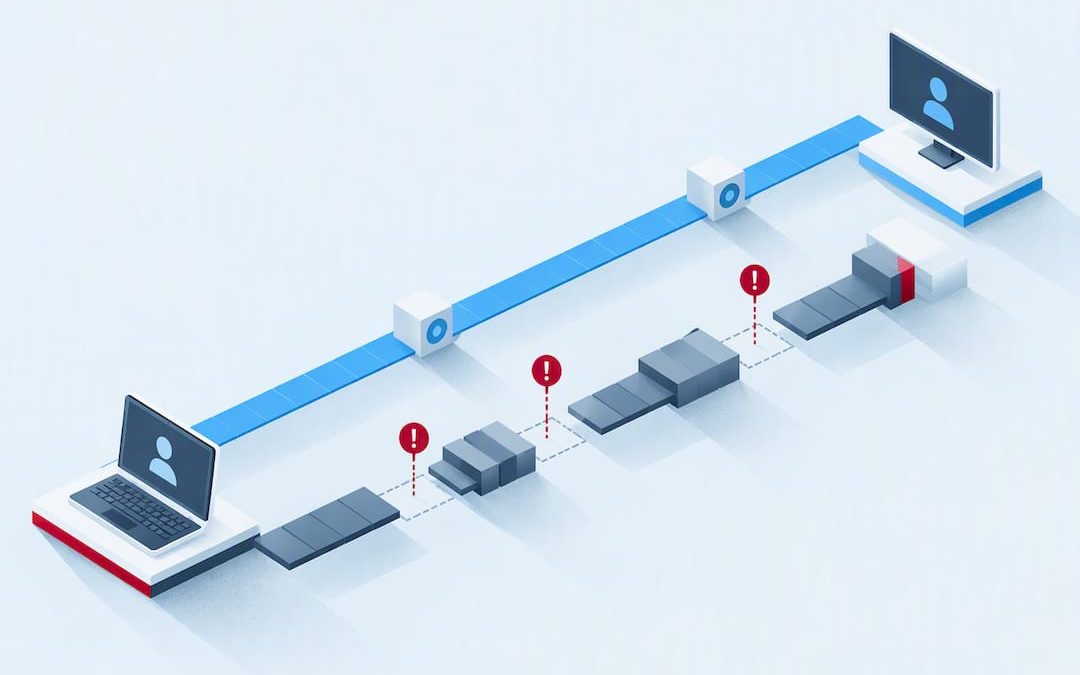
Video call lag is almost always a network problem, not a mystery, and the fastest fix is to switch to a wired Ethernet connection or, if that is not possible, move to 5GHz or 6GHz Wi-Fi and pause any uploads running in the background. This works because it cuts the jitter and packet loss that cause stutter, frozen frames and delayed audio. Try it before anything else: it solves the majority of cases in under a minute.
TL;DR:
- Switching to a wired Ethernet connection or using 5GHz/6GHz Wi-Fi can fix most call lag within seconds by reducing jitter and packet loss.
- Running simple tests on different networks, devices, or with uploads paused quickly isolates whether the problem lies with your hardware, Wi-Fi, or ISP.
- Upgrading router firmware, reducing interference, and avoiding bufferbloat through firmware updates address common network-related lag sources.
- Closing background apps, updating drivers and app versions, and lowering camera resolution can significantly improve device performance and reduce lag.
- Escalate to your ISP with detailed network tests if multiple calls experience recurring packet loss or jitter despite conducting basic troubleshooting.
Table of Contents
- Common causes of video call lag: network, device and service problems
- How to isolate the fault quickly: step-by-step tests to run now
- Network fixes that actually work: wired connections, Wi-Fi and ISP steps
- Device and app fixes: updates, settings and resources to free up performance
- Quick in-call fixes: what to do while the meeting is running
- How to measure call quality and which diagnostic tools to run
- When to seek professional help and what managed comms platforms add
- Author perspective: what DIY fixes solve and when it is worth paying for help
- A supported option for organisations that need reliable calling
- FAQ
- Sources
Common causes of video call lag: network, device and service problems
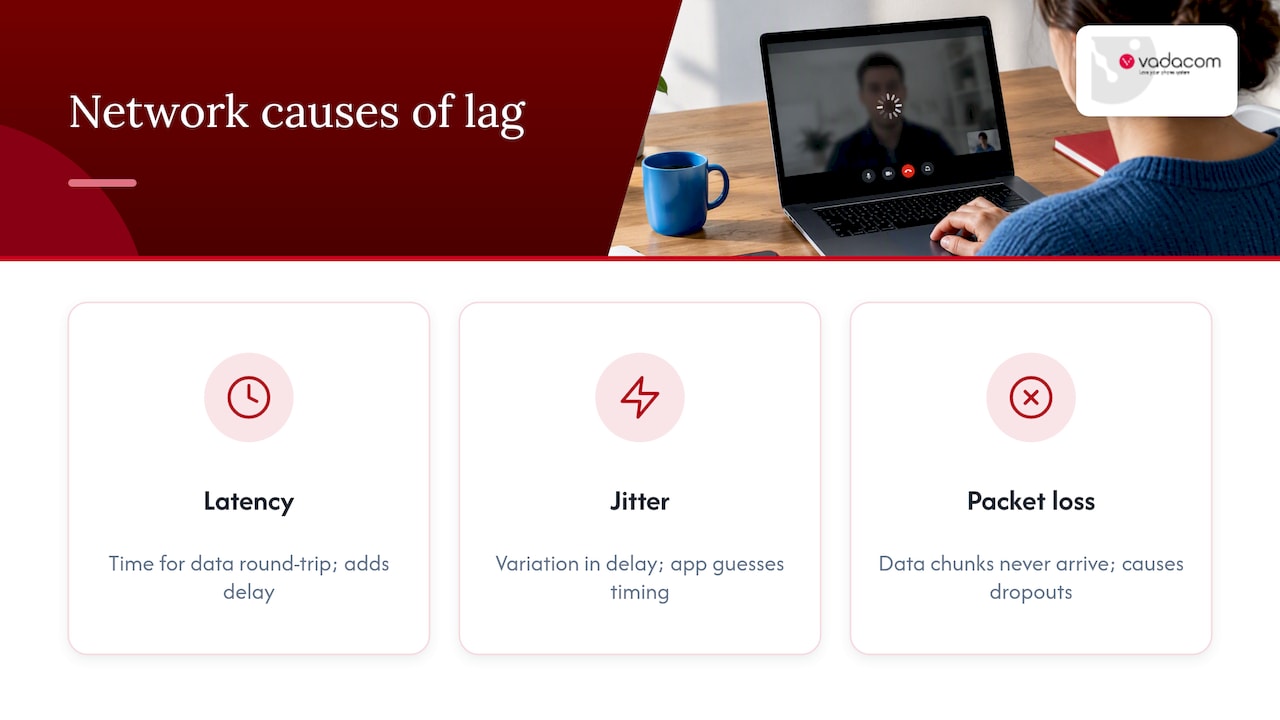
Three network problems cause most of the stutter and delay you notice on calls: latency, jitter and packet loss. Latency is the time it takes data to travel to the other person and back. Jitter is the variation in that time, which is often worse than latency itself because your call app has to keep guessing how long to wait for the next frame. Packet loss means chunks of audio or video data never arrive at all, which is what causes the robotic voice or frozen face moments.
Wi-Fi adds its own problems on top of this: interference from other devices, a crowded channel shared with neighbouring networks, distance from the router and walls in the way. Many home routers also suffer from bufferbloat, where large data transfers (like an upload) clog the connection and delay everything else, including your call.
Your device matters too. A laptop struggling with high CPU or memory use, an outdated camera driver, or a phone overheating under load can all introduce lag that has nothing to do with your internet connection. Further up the chain, a VPN, a restrictive firewall, ISP congestion or a cloud service outage can all add delay. Finally, your call app’s own de-jitter buffer and adaptive bitrate are designed to smooth over instability, but when the network is bad enough, they produce the very lag they are meant to prevent.
How to isolate the fault quickly: step-by-step tests to run now
Before changing any settings, work out whether the problem sits with your device, your network or something further away. These tests take a few minutes each and point you straight at the fix.
- Swap Wi-Fi for a wired Ethernet cable and rejoin the call: if lag disappears, your wireless connection was the cause.
- Try the same call on a different device on the same network: if the second device is smooth, the first device is the problem.
- Test on a mobile hotspot instead of your usual network: if that fixes it, the fault sits with your home or office connection, not your device or the app.
- Join the call from a different network entirely, such as a neighbour’s or a café’s, using the same device and app.
- Pause cloud backups, large downloads or uploads running in the background, then retest to see if upload headroom was the issue.
- Temporarily disable any VPN or proxy and rejoin, since these routes often add extra hops and delay.
- While testing, note the exact times, symptoms (frozen video, delayed audio, dropped call) and which test fixed or failed to fix it. This record is exactly what a support team or ISP will ask for if you need to escalate.
Each test rules something in or out. A clean result on Ethernet but a laggy one on Wi-Fi tells you precisely where to focus your fix, rather than guessing.
Network fixes that actually work: wired connections, Wi-Fi and ISP steps
Wired Ethernet remains the single most effective fix for video call lag because it removes radio interference entirely and consistently reduces jitter and packet loss compared with wireless. If your laptop has no Ethernet port, a $15 to $30 USB adapter solves that in minutes.
When wired is not an option, these steps help in order of effort: see our practical guide when Wi-Fi keeps dropping for step-by-step router and interference fixes.
- Connect to the 5GHz or 6GHz band instead of 2.4GHz, since both suffer far less co-channel interference from neighbouring networks.
- Move closer to the router and remove obstacles like walls, mirrors and metal cabinets between you and it.
- Log into your router and manually select a less congested Wi-Fi channel if your network is in a crowded apartment building or office.
- Pause large uploads, cloud syncs and backups before the call starts: video calls need steady upload bandwidth more than they need raw download speed.
- Check your router for bufferbloat, a common cause of lag under load where large transfers delay everything else on the connection; enabling Smart Queue Management (SQM) or updating to firmware with modern queue management can resolve it.
Pro Tip: Update your router’s firmware before you do anything else, since many bufferbloat and stability fixes ship as firmware updates rather than new hardware.
If none of this helps, it is worth escalating to your ISP with evidence rather than a vague complaint. Run a speed test focused on upload consistency, a traceroute to see where delay is introduced, and note the jitter figures from a few repeated tests. Handing over actual numbers gets a faster, more useful response than reporting that calls “feel slow.”
Device and app fixes: updates, settings and resources to free up performance
Your device can cause lag even on a perfect network connection, usually because something else on it is competing for CPU, memory or camera access.
- Close unused browser tabs and background apps, especially other video tools, cloud sync clients and heavy browser extensions.
- Check Task Manager (Windows) or Activity Monitor (Mac) during a call for CPU or memory spikes and close whatever is causing them.
- Update your operating system, camera drivers and the call app itself: outdated drivers are a common, overlooked cause of choppy video.
- Try the web client version of the app instead of the desktop app, since it sometimes performs better on older machines.
- Turn off virtual backgrounds and video filters, which both rely on real-time processing that strains weaker CPUs and GPUs.
- Lower the camera’s resolution or frame rate in the app’s video settings if your device struggles to keep up.
- Enable hardware acceleration in the app’s settings if it is available, since this shifts video processing to your GPU instead of the CPU.
- Prefer a known-good USB webcam over a laptop’s built-in camera if you are troubleshooting a specific lag pattern tied to video only.
Quick in-call fixes: what to do while the meeting is running
When lag hits mid-call, you do not have time for diagnostics. These steps buy you clarity and intelligibility in seconds.
- Turn off your outgoing video and keep audio only: video uses far more bandwidth than audio, so this often resolves lag instantly.
- Ask other participants to stop screen sharing or pause any uploads running on their end, since their bandwidth use affects shared call quality too.
- Lower your send resolution in the app’s settings, or switch fully to audio if video is not essential to the meeting.
- If you are on mobile, try tethering to a different network temporarily to see if the lag clears.
- Toggle airplane mode on and off (mobile) or reconnect to Wi-Fi (desktop), then rejoin the call rather than waiting for it to recover on its own.
How to measure call quality and which diagnostic tools to run
Numbers beat guesswork here. A ping test to a nearby server shows your round trip time: Google Meet guidance treats latency under 100 milliseconds as ideal, with 300 milliseconds or more noticeably reducing call quality. A traceroute shows exactly which hop along the path introduces delay, which is useful evidence if the fault sits outside your home network.
A roundtrip time under 200 milliseconds is the typical target for smooth Microsoft Teams calls, and checking your app’s built-in call health panel for sent frame rate, roundtrip time and packet loss gives you a direct read on whether the issue is your network or your device.
- Run a standard speed test, but focus on upload consistency rather than peak download numbers, since uploads carry your outgoing video.
- Repeat the test three or four times across a few minutes rather than relying on a single result.
- Screenshot the in-app call health metrics during a laggy moment, along with the time, so you have evidence if you escalate.
- Use a bufferbloat test to check whether your connection holds up under simultaneous load, since this is often the real cause even on fast plans.
When to seek professional help and what managed comms platforms add
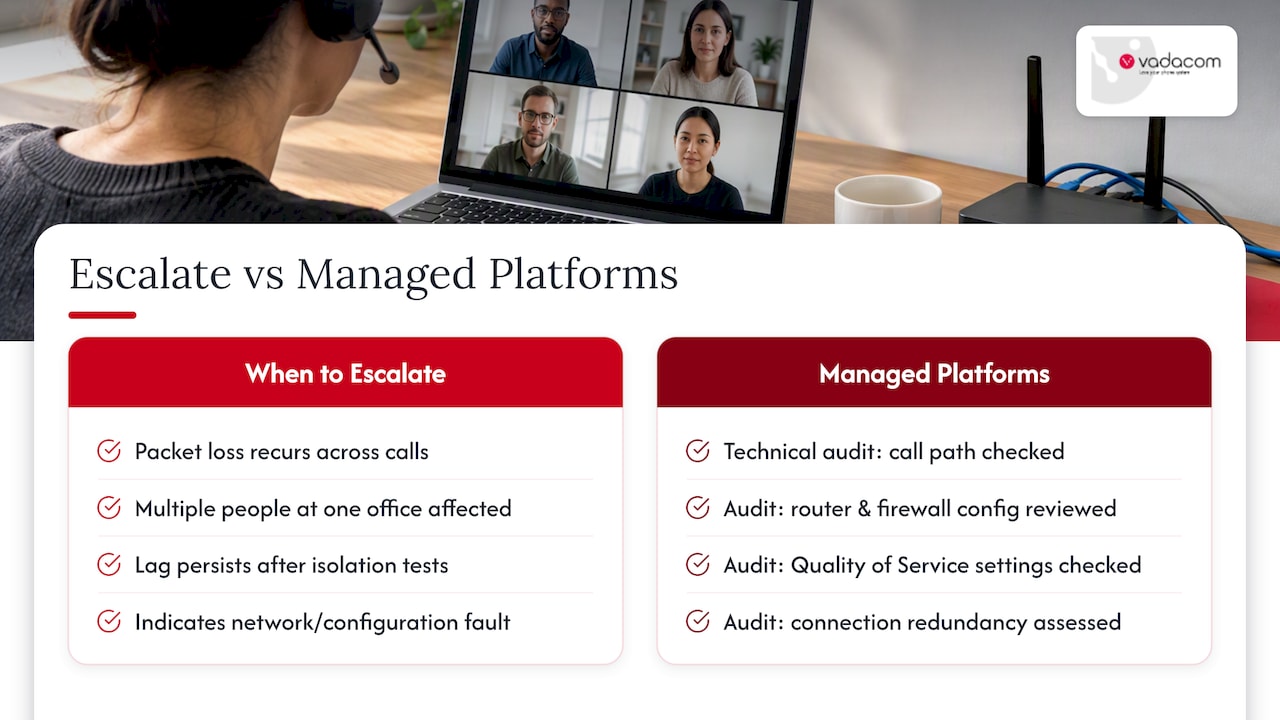
Escalate when packet loss recurs across multiple calls, several people at the same office location are affected simultaneously, or lag persists after you have worked through the isolation tests above. At that point, the fault usually sits in network configuration or infrastructure rather than any single device.
A proper technical audit checks the path your calls take, router and firewall configuration, Quality of Service settings and whether your connection has the redundancy to handle a busy office. NextVoice runs on a telco-grade cloud architecture with local support, and optional AI Call Intelligence adds deeper call analysis for organisations that keep hitting the same quality issues on repeat.
Author perspective: what DIY fixes solve and when it is worth paying for help
Most home video call lag is fixable with nothing more than an Ethernet cable, pausing uploads and a few device tweaks. I would try all of that before spending a cent. Organisations are a different story: monitoring, agreed response times and local support earn their cost once lag starts affecting client calls or multiple staff at once, because nobody has time to run ping tests during a board meeting. Whichever path you take, write down what you tested and what happened. It turns a support call from a guessing game into a five-minute fix.
— Stuart
A supported option for organisations that need reliable calling
When troubleshooting has run its course and lag is still costing you client calls or team time, we built NextVoice to take that problem off your plate rather than hand you another thing to debug.

Our platform runs on telco-grade cloud architecture with multiple availability zones, so the resilience that home routers and consumer ISPs struggle with is built into the service rather than left to you to configure. We back it with local support from a team experienced in business communications for many years, which matters when a fault needs a real conversation rather than a ticket number. For organisations that suspect their lag is a configuration or network issue rather than a one-off, we run technical audits to find the actual cause, and our optional AI Call Intelligence gives ongoing visibility into recurring call-quality problems rather than a one-time check.
- NextVoice: cloud business calling with extension dialling, call transfer and voicemail built in.
- Technical audit: a one-off review of your network and configuration to identify what is causing recurring call issues.
- AI Call Intelligence: ongoing recording and analysis for organisations that want to catch patterns before they become complaints.
| Service | What it solves |
|---|---|
| NextVoice | Reliable, supported cloud calling for teams working across multiple locations |
| Technical audit | Identifies network or configuration causes behind recurring lag |
| AI Call Intelligence | Ongoing analysis of call recordings to catch recurring quality issues |
If lag is a recurring problem for your team rather than a one-off, a technical audit is a practical place to start.
FAQ
Why am I so laggy even with good internet?
A fast download speed does not guarantee smooth calls, because video relies heavily on upload consistency, jitter and bufferbloat rather than peak download numbers. The cause is often background uploads competing for bandwidth, Wi-Fi interference, or your own device struggling with CPU load.
How do I fix a video that keeps lagging?
Start by switching to a wired Ethernet connection, since it removes the Wi-Fi interference that causes most jitter and packet loss. If that is not possible, move to the 5GHz or 6GHz Wi-Fi band, pause uploads and background apps, and lower your camera’s resolution.
How can I fix lag during video calls on platforms like Zoom or Teams?
Turn off your video and switch to audio only first, since this frees the most bandwidth instantly. Check your app’s call health metrics for roundtrip time and packet loss, and disable any VPN that might be routing your traffic through extra hops.
Why does my video call lag on mobile?
Mobile lag is usually caused by a weak signal, background apps using data, or other devices on the same Wi-Fi network competing for bandwidth. Try switching between Wi-Fi and mobile data, closing background apps, and moving to a spot with a stronger signal.
What internet speed do I need for smooth video calls?
There is no single number that guarantees smooth calls, since stability and upload consistency matter more than peak speed. Google Meet guidance treats round trip latency under 100 milliseconds as ideal, with 300 milliseconds or more noticeably reducing quality regardless of your plan’s advertised speed.