

The fastest working approach for most businesses is a simple tel: link on mobile-facing pages, paired with a callback or softphone connector for desktop visitors. Before touching code, confirm two things: the phone number the call should reach, and which phone or VoIP account will actually handle it. Website visitors on mobile get instant dialling, while desktop users and contact centres benefit more from a connector that routes into your CRM.
TL;DR:
- Before coding, confirm the destination number, extensions, caller ID, and answering phone or VoIP account; unclear ownership commonly stalls implementation.
- Use tel links for mobile visitors, but offer desktop visitors a callback or softphone option because many browsers lack a dialler handler.
- Pass page, campaign, or visitor context into the CRM, and test provider authentication, number formatting, and call logging in staging before launch.
- Make every control keyboard accessible, add a clear screen reader label, and pair call icons with visible text rather than relying on icons alone.
- For recorded calls in New Zealand, notify staff and customers, link the privacy policy, and explain retention; people can request recordings involving them.
Table of Contents
- Quick checklist: choose a method and prepare the prerequisites
- Two practical implementations: tel links and tel inputs
- Integrating click-to-call with CRM, helpdesk or cloud phone systems
- Accessibility and privacy: practical steps to comply and be usable
- Testing and troubleshooting checklist for cross-device and CRM flows
- Why reliability matters more than a polished widget
- Getting click-to-call right with NextVoice
- FAQ
- Sources
- Authoritative developer and privacy references
Quick checklist: choose a method and prepare the prerequisites
Before you write a line of code, decide what experience you want. A direct tel: link hands the call straight to the visitor’s own phone or device dialler. A callback or connect flow has your system ring both parties and bridge them. An in-browser softphone keeps the call inside the page using WebRTC. Each suits a different kind of visitor and a different level of engineering effort.
Once you’ve picked a direction, gather what your IT team needs before implementation starts:
- The business phone number or numbers the click should connect to, including any extension routing.
- SIP or VoIP account credentials if you’re connecting through a cloud phone system rather than a plain
tel:link. - CRM or helpdesk API keys if you want click context passed into a ticket or contact record.
- At least two test devices: one mobile handset and one desktop browser with a softphone client installed.
- A confirmed number format (with country code) and a mapping of which caller ID should display to the person receiving the call.
Skipping this step is the most common reason click-to-call projects stall midway: someone builds the button, then discovers nobody confirmed which number it should dial or whose VoIP seat answers it.
Two practical implementations: tel links and tel inputs
The simplest pattern is a plain anchor tag:
<a href="tel:+64211234567">Call us: 021 123 4567</a>
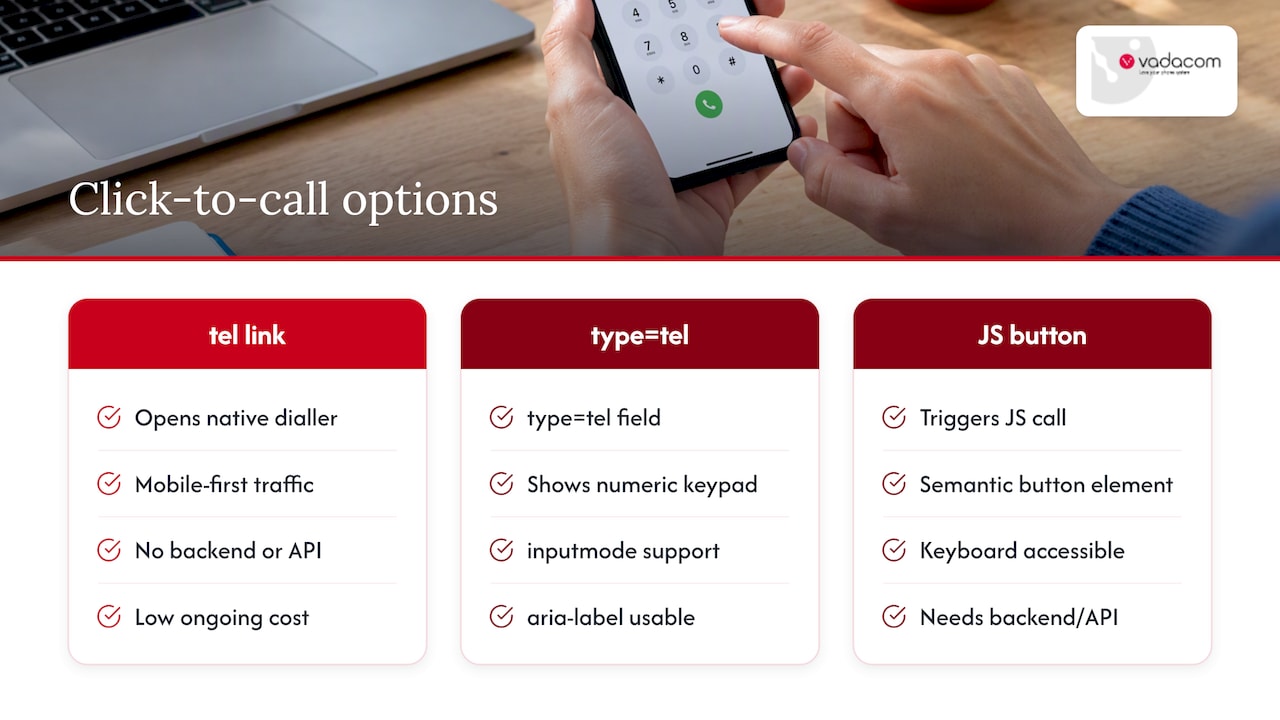
This is appropriate for mobile-heavy traffic, where tapping the link opens the device’s native dialler. It needs no backend, no API and no ongoing cost, which is why it remains the starting point for most rollouts.
For callback forms, where the visitor enters their number so an agent can call them, use <input type="tel">. This input type signals to mobile browsers that they should show a numeric keypad, and it supports a pattern attribute for basic validation plus an aria-label for screen readers:
<input type="tel" id="callback-number" name="callback-number"
  pattern="[0-9]{2,4}[- ]?[0-9]{3}[- ]?[0-9]{4}"
  placeholder="021 123 4567"
  aria-label="Your phone number for a callback">
If a button triggers a call via JavaScript rather than a plain link, use a semantic <button> element rather than a styled <div> or <span>, so it stays in the tab order and responds to Enter and Space by default. On desktop, where most visitors don’t have a dialler tied to their browser, a callback-connect flow usually converts better than a tel: link that does nothing until a softphone app is installed.
Integrating click-to-call with CRM, helpdesk or cloud phone systems
Once the basic click action works, the next step is making sure the call carries useful context into whichever system your agents actually use. There are a few common patterns:
- Webhook-triggered outbound call: the click posts to your phone provider’s API, which places an outbound call and, separately, calls the agent to bridge them.
- Softphone or WebRTC link: the click opens an in-browser or desktop softphone preloaded with the number, keeping the call client-side.
- SIP URI handling: the link uses a
sip:scheme instead oftel:, letting a registered SIP client handle the call directly. - CRM pop with context: the click passes the page URL, campaign tag or visitor ID to the CRM, so the agent’s screen shows relevant history the moment the call connects.
That last pattern is where most of the value sits. Salesforce’s guidance on click-to-call notes that CRM-linked click-to-call delivers more value when the click’s context, such as the page or campaign, is passed to the agent and calls are routed intelligently, which cuts down on wait times and repeated questions.
To build this, ask your phone provider for their API or webhook documentation, authentication tokens, and a test number before writing any integration code. Run your first tests in a staging environment, and watch for the usual pitfalls: expired auth tokens, CORS errors on the click handler, and inconsistent phone number formatting between your CRM and your phone system. Our guide on AI call routing covers how intelligent routing fits alongside this kind of setup.
Accessibility and privacy: practical steps to comply and be usable
Every click-to-call control needs to work for people who don’t use a mouse. Keep these basics in place:
- Make the trigger keyboard-focusable, whether it’s a link or a button, and test it with Tab and Enter alone.
- Add a clear
aria-label, such asaria-label="Call our sales team on 021 123 4567", so screen reader users know exactly what will happen. - Keep a visible text label next to any icon, since an icon alone fails sighted users scanning quickly.
- Add equivalent keyboard handlers for any click event that triggers JavaScript, matching WCAG keyboard operability guidance.
Under New Zealand privacy guidance, agencies that record calls are expected to tell staff and customers recordings may happen, and individuals can ask for a copy of a recording that involves them. A short line near the call button, such as “Calls may be recorded for training purposes,” satisfies the basic disclosure. Pair it with a link to your full privacy policy and make sure staff know how long recordings are retained. Our call recording guide walks through retention and consent in more detail.
Testing and troubleshooting checklist for cross-device and CRM flows
Before launch, run through this sequence:
- Tap the link on a real mobile handset and confirm the native dialler opens with the correct number.
- Click the equivalent control on desktop and confirm the softphone or callback flow answers correctly, with a sensible fallback (such as a visible number) if no softphone is installed.
- Check basic network conditions for VoIP: confirm SIP ALG is disabled on the router, NAT traversal is working, and run a simple bandwidth test before relying on in-browser calling.
- Place a few test calls and confirm the CRM entry, call log and any recording were all created and tagged correctly.
Most failures trace back to one of three things: a tel: link that silently does nothing because no app handles it, missing context because the webhook didn’t pass page data to the CRM, or an authentication error between your phone provider and your CRM. Our VoIP jitter and bandwidth guide is a useful reference if call quality, not connection, turns out to be the problem.
Pro Tip: Run your first week of click-to-call live with call recording on and review a sample of calls manually, it surfaces formatting and routing errors faster than any automated test.
Why reliability matters more than a polished widget
Most teams spend their first week of a click-to-call project tweaking button colours and hover states. That effort is better spent confirming caller ID displays correctly and calls land with the right agent every time. A visitor who clicks to call and reaches a dead line, or an agent with no idea who’s calling or why, loses far more trust than a plain button ever recovers.
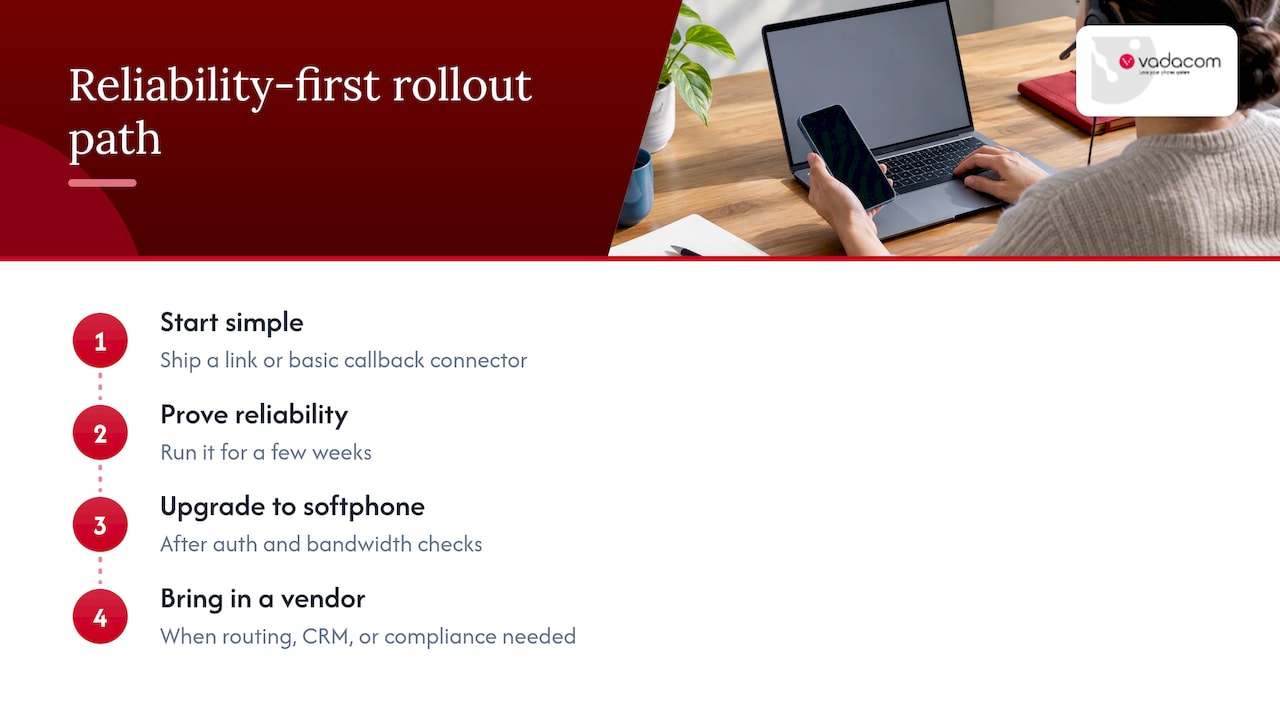
The practical rollout path is to ship a tel: link or a basic callback connector first, prove it’s reliable for a few weeks, then move toward an in-browser softphone once your team is comfortable with the authentication and bandwidth requirements that come with it. Bringing in a vendor or managed service makes sense once you need routing logic, CRM context or recording compliance handled for you rather than stitched together in house.
— Stuart
Getting click-to-call right with NextVoice
Our platform handles the parts of click-to-call setup that get complicated fast: extension dialling, configurable call flows and in-app recording, all useful once you’re mapping a click to a specific agent’s workflow rather than just a phone number. 
For IT teams building this themselves, we also provide deployment resources including browser-based phone guides and copyable auto-attendant scripts, so you’re not starting from a blank page. If you’d rather have a team that already understands NZ and Australian phone infrastructure handle the routing and recording side, our NextVoice platform is worth a look.
- Extension dialling and announced transfer, so clicks can route to the right person without a dead handoff.
- Configurable call flows that map cleanly onto a click-to-call trigger from your website or CRM.
- In-app recording with the disclosure and retention controls a compliant rollout needs.
If you want help scoping which approach fits your setup, get in touch about NextVoice and we’ll talk through what’s realistic for your phone infrastructure.
FAQ
How do I create a click-to-call link?
Wrap a phone number in an anchor tag using the tel: scheme, for example <a href="tel:+64211234567">Call us</a>. On mobile devices this opens the native dialler pre-filled with the number; on desktop it depends on whether the browser or OS has a handler registered for tel: links.
How do I activate my phone to make calls through click-to-call?
No special activation is needed on the visitor’s side. A tel: link uses whatever dialling app is already set up on their phone, while a callback flow relies entirely on your phone system placing the call, so the visitor doesn’t need to do anything beyond entering their number.
How do I add a click-to-call button to my website?
Add an <a href="tel:..."> element or a <button> with a JavaScript handler styled to match your site, then test it on a real mobile device to confirm the dialler opens correctly. For callback forms, pair it with an <input type="tel"> field and clear labelling so visitors know what will happen when they submit.
How do I change my call settings for click-to-call?
Call settings, such as which number rings, caller ID display and routing rules, are usually managed in your phone provider’s admin portal or CRM integration settings rather than in the website code itself. Check your provider’s dashboard for routing and caller ID options before changing anything in the front end.
Should click-to-call dial directly or use a callback connect flow?
Both are valid, and which one you offer should be clear to the visitor beforehand, since a direct dial and a callback flow behave very differently. Direct tel: links suit mobile visitors with a working dialler, while callback flows suit desktop visitors or situations where you want the call logged and routed through a CRM first.
Sources
- – MDN Web Docs
- Can an employer record workplace phone calls? — Privacy Commissioner NZ
- Click-to-call guidance — Salesforce
- Mobile accessibility — MDN
Authoritative developer and privacy references
<input type="tel">reference and validation patterns- Mobile and keyboard accessibility guidance for interactive controls
- Privacy Commissioner guidance on recording phone calls
- Salesforce guidance on CRM-linked click-to-call routing