
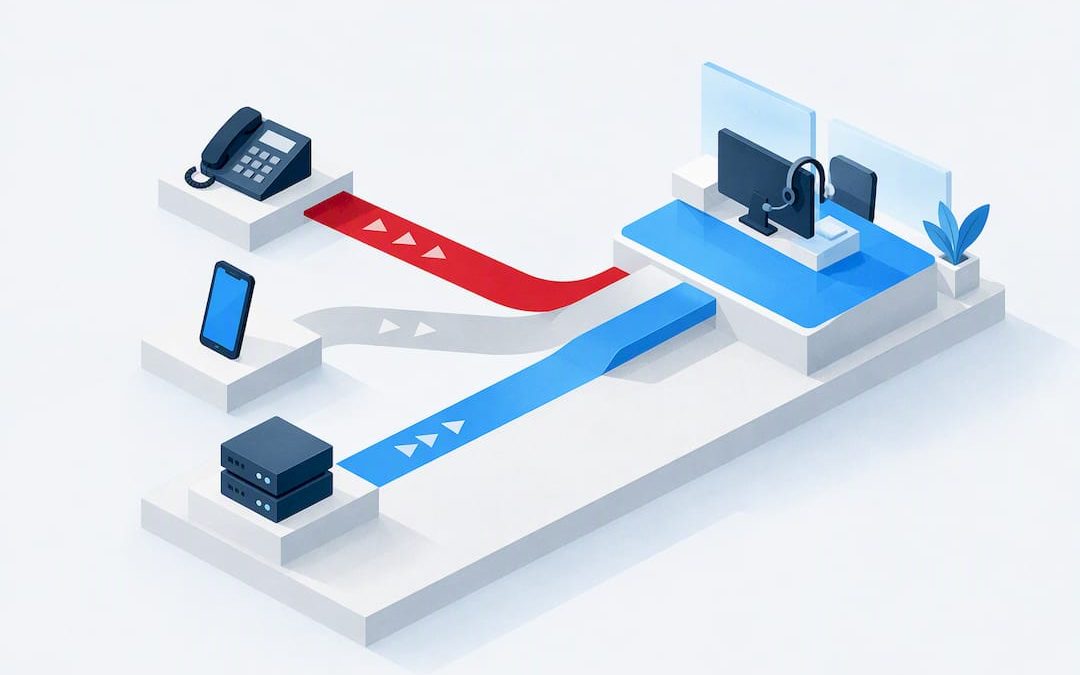
Call transfer methods are primarily categorised into warm (consultative) transfer, blind (cold) transfer, and transfer to voicemail. Use attended transfers for complex or high-value enquiries, blind transfers for simple routing where the destination is obvious, and voicemail when the recipient genuinely cannot take the call. The right choice depends on your platform and device, which we cover step by step below.
TL;DR:
- Use warm transfers for complex, VIP, or time sensitive calls; reserve blind routing for obvious destinations, and use voicemail only when recipients cannot take calls.
- Before each handoff, confirm the recipient is available, verify voicemail access, add relevant CRM context, and privately brief the recipient before releasing the caller.
- Many mobile phones lack transfer controls; merge both calls, introduce the parties, and leave the line yourself, while VoIP apps may support direct transfer.
- Track repeat transfers alongside overall transfer rates; a low rate can signal strong first contact resolution or callers giving up before reaching help.
Table of Contents
- Types of call transfers and what they mean
- How to transfer calls on desk phones, mobiles and VoIP apps
- How SIP makes call transfers work behind the scenes
- Best practices and protocols for attended transfers
- When to use each transfer method
- How Vadacom’s platform supports reliable transfers
- What most transfer advice gets wrong
- Get reliable transfers with NextVoice
- FAQ
- Sources
Types of call transfers and what they mean
Shared vocabulary matters once more than one team is handling transfers, because a “warm transfer” on one desk phone can mean something slightly different on a softphone app.
A warm transfer (also called attended or consultative transfer) follows a simple sequence: the agent places the caller on hold, calls the recipient privately to explain the situation, then completes the transfer once the recipient agrees to take the call. A blind transfer (cold transfer) skips the consultation step entirely: the caller is routed straight to the destination number or extension without any briefing, which works well when the destination is almost certainly correct and available. Transfer to voicemail routes the caller directly into a mailbox, either because the recipient is unavailable or because the agent has already confirmed that leaving a message is the right next step.
A few related options sit alongside these three:
- Call park: the call is held in a shared space so any team member can retrieve it from another extension.
- Ring-back transfer: the system calls the agent back once the destination answers, rather than holding the original line open.
- Direct external transfer: the call is handed off to an outside number, such as a mobile or another office, rather than an internal extension.
Zoom’s own support documentation groups transfer methods into exactly these categories: warm, blind and transfer to voicemail, which is a useful baseline when writing training material.
How to transfer calls on desk phones, mobiles and VoIP apps
Procedures vary by device, but the underlying logic rarely does. Here’s how to run each one in practice.
- Desk phones and IP handsets: press the Transfer button, dial the extension or number, then choose either “consult” (talk to the recipient first) or “transfer now” (blind transfer). Complete the transfer by hanging up, or press Cancel to return to the original caller if the recipient is unavailable.
- Mobile phones: most carriers and mobile operating systems support merge or “add call” patterns rather than a dedicated transfer button. If a true transfer isn’t supported on your handset or plan, the practical fallback is to merge the call, introduce both parties, then drop off the line yourself.
- VoIP apps and platforms like Teams or Zoom: look for a “consult then transfer” option, which lets you speak with the recipient before handing the caller over, alongside a “transfer now” option for immediate handoff. Microsoft Teams supports both flows and lets you add context or notes before completing the transfer, which cuts down on callers having to repeat themselves.
- Transfer to voicemail: select the voicemail transfer option where available, or dial the extension followed by the voicemail access code your system uses.
Before any transfer, run three quick checks: confirm the recipient’s presence status, confirm voicemail is actually enabled if you’re routing there, and append any relevant notes to the CRM record so the next person isn’t starting from zero. A sound extension dialling plan makes all of this faster, because agents aren’t hunting for the right number mid-call.
Pro Tip: Always have a one-sentence fallback ready (“let me pop you through to voicemail if they don’t pick up”) so the caller never hits dead air while you wait on a transfer to connect.
How SIP makes call transfers work behind the scenes
Most modern business phone systems run on SIP (Session Initiation Protocol), and the transfer mechanics underneath matter when things go wrong.
- REFER: this is the core SIP method used to cause the transferee’s phone to initiate a new call to the transfer target. RFC 5589 documents this as the foundation for blind, consultative and attended transfers.
- Replaces header: for attended transfers, the Replaces header lets a new dialog substitute for an existing one, which is what allows the two consulted parties to be joined seamlessly rather than creating a messy three-way bridge.
- Basic transfer vs consultation-hold transfer: RFC 5589 distinguishes a basic transfer (immediate REFER) from consultation-hold transfer (hold, consult, then REFER with Replaces), and outlines recovery approaches when an endpoint doesn’t support REFER.
- Interoperability: a successful REFER doesn’t automatically end the original call leg; the endpoint has to send a BYE to close it out. Mismatched support for Replaces or non-routable Contact URIs are common causes of failed attended transfers across mixed vendor environments, a nuance covered in more depth in our SIP Replaces vs REFER comparison.
Best practices and protocols for attended transfers
A short, consistent script removes most of the friction in attended transfers. The core sequence is: tell the caller who you’re transferring them to and why, call the recipient privately, give a one or two sentence summary of the issue, then confirm the recipient is ready before releasing the caller.
Run through a quick checklist before every transfer:
- Confirm the recipient’s presence or availability status.
- Verify voicemail is set up correctly if there’s any chance the call lands there.
- Check the CRM record for context so the next agent isn’t starting cold.
- Know your escalation path if the first destination can’t help.
Transfers generally fall into warm, blind and voicemail categories, and tracking which type is overused in your contact centre often reveals training gaps rather than system faults, a pattern Zoom’s support guidance touches on when discussing in-app transfer context and ring-back options.
Beyond the script, three metrics are worth watching: transfer rate (how often calls get moved at all), repeat-transfer frequency (callers bounced more than once), and what practitioners call the “customer effort tax”, the friction a caller experiences across a transfer, which speech analytics can surface by reviewing the first minute of the receiving agent’s transcript. Fallback controls like ring-back, call park and well-designed auto-attendant scripts stop transfers from becoming dead ends when a recipient genuinely can’t be reached.
When to use each transfer method
Matching the method to the scenario is mostly about customer expectation and agent skill.
- Warm transfer: complex enquiries, VIP customers, multi-step cases where context loss would frustrate the caller.
- Blind transfer: simple, high-volume routing where the destination is clearly correct, such as directing a billing query straight to accounts.
- Voicemail or call park: the recipient is unavailable, it’s after hours, or the case needs escalation before anyone can speak to the caller properly.
- SLA-sensitive calls: lean toward warm transfers even when it costs more agent time, because a failed blind transfer on a high-value call is harder to recover from than the extra thirty seconds a consult takes.
How Vadacom’s platform supports reliable transfers
Reliable transfers depend on the platform underneath them. Our platform pairs straightforward extension dialling with in-app transfer controls and configurable call flows, so agents aren’t guessing which extension to dial or whether a recipient is even online. In-app call recording and optional AI Call Intelligence let operations teams measure where transfers stall and coach agents on the handoffs that keep breaking down, rather than relying on anecdotal complaints.
What most transfer advice gets wrong
Most guidance on call transfers treats it as a button-press problem: press this, dial that, done. The harder issue is almost always upstream of the transfer itself, in whether the caller ever needed a human transfer at all. Teams that chase down “transfer rate” as a standalone metric often miss that a low rate can mean either excellent first-contact resolution or callers giving up before anyone picks up.
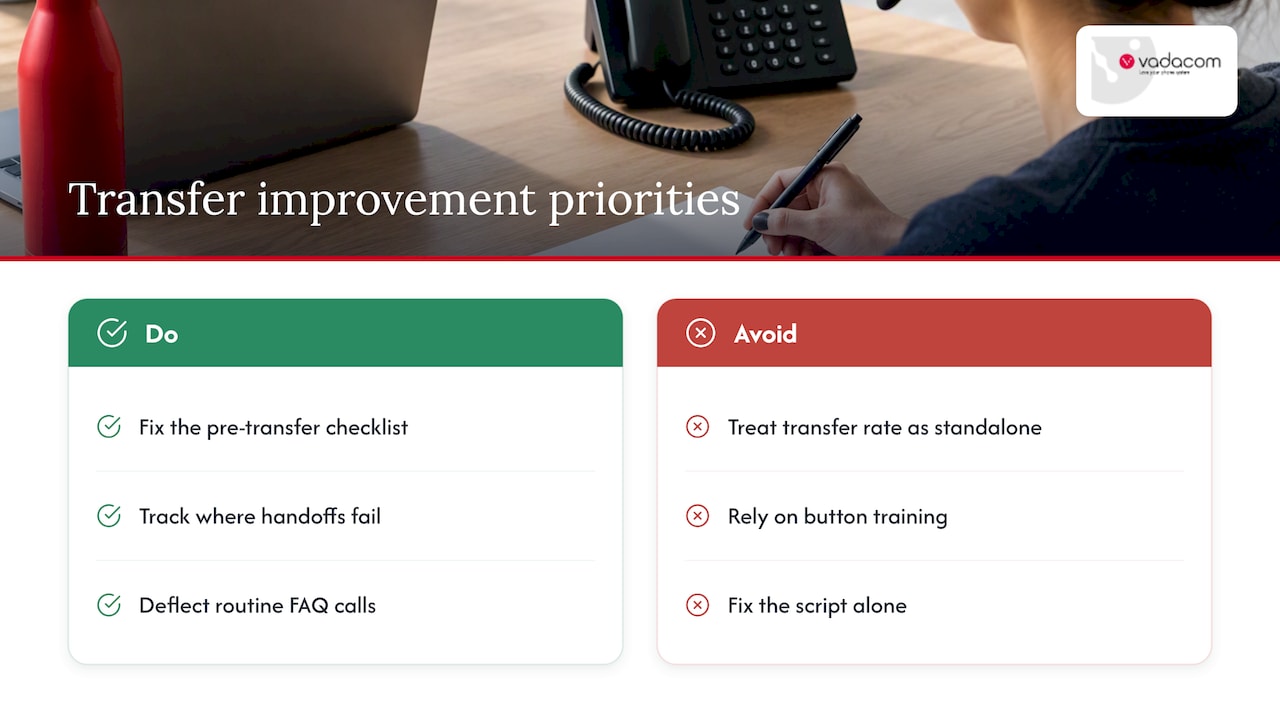
The conventional fix, more training on the transfer button, rarely moves the needle. What actually helps is pairing a tight attended-transfer script with visibility into where handoffs fail, and deflecting the routine, low-value calls before they ever reach an agent’s queue. A chatbot or web assistant handling FAQ-style queries can meaningfully cut the volume of calls that need transferring in the first place, which is worth testing alongside any internal script changes, as Konvuno’s analysis of call deflection lays out.
If you only fix one thing this quarter, fix the pre-transfer checklist, not the script. A caller who gets correctly routed on the first attempt barely notices the handoff; a caller bounced twice remembers it for months.
— Stuart
Get reliable transfers with NextVoice
Reliable call handling comes down to the platform doing the routine work so your team doesn’t have to think about it. The platform gives you extension dialling, configurable call flows and in-app transfer controls built in from the start, so warm, blind and voicemail transfers all work the same way across desk phones, mobiles and browser apps.

For teams that want to see exactly where transfers are breaking down, our optional AI Call Intelligence adds call recording and analysis on top of the core platform. If your current setup is still running on ageing on-premise hardware, our technical audit is a practical place to start. Get in touch to see NextVoice in action for your team.
FAQ
How do you transfer calls to another number?
On most desk phones and VoIP apps, press Transfer, dial the destination number, then choose to either consult first or complete the transfer immediately. Mobile phones often require merging the call and dropping off instead, since many handsets lack a dedicated transfer function.
How do you know if someone is forwarding your calls?
There’s no universal indicator visible to the caller; forwarding typically happens silently on the recipient’s device or system settings. If you suspect it, the most reliable way to confirm is to ask the recipient directly or check their call forwarding settings with their provider.
How do I set up call transfer on an iPhone?
The iPhone’s native Phone app doesn’t offer a true transfer button; instead, you add the second call, then merge the two calls and drop off the line once you’ve introduced both parties. Business VoIP apps installed on an iPhone, by contrast, often include a proper transfer function similar to a desk phone.
What does “call transferred” mean?
“Call transferred” means the call has been successfully moved from the original agent or line to a different extension, number or voicemail box. It confirms the handoff is complete rather than still in progress, which matters in attended transfers where the original agent stays on the line until confirmation arrives.
Sources
- Transfer a call in Microsoft Teams | Microsoft Support
- RFC 5589 — Session Initiation Protocol (SIP) specific semantics for call transfer