

Cloud collaboration tools let your team work on the same documents, messages, meetings and calls from any location, without servers in your office. For most small and mid-sized businesses the best result comes from one connected set: document and project tools for the work itself, and a cloud phone system with video, chat and screen sharing for the conversations around it. Our NextVoice platform covers that second half, voice, video, chat, desktop sharing and call handling, on the devices your people already use.
TL;DR
- Cloud collaboration tools cover two jobs: working on shared content (documents, files, tasks) and talking in real time (calls, video, chat). Most teams need both.
- Choose on security basics, ease of use, integrations and total cost per user, then pilot with a small group before rolling out to everyone.
- Phone calls are the piece most collaboration suites treat as an add-on. A cloud phone system keeps your business number, extensions and call flows consistent whether staff are in the office or at home.
- Turn on multi-factor authentication first. It is the cheapest security step and works across every tool you add.
- AI features such as call recording analysis are worth adding once the basics are running, with recording and privacy rules checked first.
Table of Contents
- What cloud collaboration tools actually are
- Why distributed teams adopt them
- Collaboration tools versus cloud phone systems
- What to look for: a practical checklist
- How to roll out without disruption
- Where voice fits: the call side of collaboration
- AI features: add them after the basics
- Perspective
- How Vadacom can help
- A simple selection process
- FAQ
- Sources
What cloud collaboration tools actually are
A cloud collaboration tool is software that runs on the provider’s servers rather than yours, so people in different places can work together on the same thing. TechTarget describes the core idea as employees working on off-premises documents and data, sharing links and editing at the same time so everyone sees the same version.
That definition covers a lot of ground. In practice the tools fall into four groups:
- Content tools. Shared documents, spreadsheets, file storage and version control.
- Work management tools. Task boards, project plans, approvals and reminders.
- Messaging and meeting tools. Team chat, group channels, video conferencing and screen sharing.
- Voice tools. Business phone numbers, extensions, voicemail, call transfer and call recording, delivered from the cloud.
The TechRepublic roundup of online collaboration software describes the same spread: real-time communication, file sharing, project management and document collaboration, all usable regardless of where staff sit. The fourth group is the one most “best tools” lists skip, and it is the one your customers notice first, because it is how they reach you.
Why distributed teams adopt them
The reasons are practical rather than fashionable. TechTarget lists efficiency, flexibility, real-time collaboration, access control, inclusivity and version control as the main benefits for distributed teams. Translated into daily operations:
- One version of the truth. No more “final_v3_REAL.docx” attachments circulating by email.
- Work follows the person. A manager on a site visit, a bookkeeper at home and a receptionist in the office all reach the same files and the same colleagues.
- Access can be controlled. You decide who sees what, and you can remove access in one place when someone leaves.
- Less waiting. Questions get answered in a chat thread or a short call instead of a day of email.
For a small business without a dedicated IT team, the benefit that matters most is often the last: fewer systems to look after. That is also why picking a smaller, well-connected set of tools usually beats collecting a dozen apps.
Collaboration tools versus cloud phone systems
The two are different things that work best together.
A collaboration suite is built around content and messaging. Its strength is people editing, commenting and chatting. Its calling features are usually secondary to that.
A cloud phone system is built around the business number. Its strength is call handling: extension dialling, call transfer, announced transfer (where you tell the person you are transferring to who is calling before you hand over), voicemail, recording and call flows that decide where each call goes and when.
The difference shows up when something goes wrong or needs changing. If your main number rings at an empty desk, the fix lives in the phone system. If two people overwrote each other’s quote, the fix lives in the content tool. Treating them as one purchase leads to gaps: no clear owner, no routing for after hours, and staff using personal mobiles for client calls.
A simple way to decide which you need:
| Your problem | Tool type that solves it |
|---|---|
| Staff email files back and forth | Content and file sharing |
| Projects slip because nobody sees the plan | Work management |
| Quick questions clog inboxes | Team chat and video meetings |
| Customers get voicemail or a dead line when staff are out | Cloud phone system with call flows |
| Staff use personal mobiles for client calls | Cloud phone system with a mobile or app client |
Our view is that voice deserves the same care as documents. The internal business communication guide for Australian teams walks through how the pieces fit together, and the hybrid work communication guide covers the day-to-day habits that keep a split office and home team in step.
What to look for: a practical checklist
Built In’s guide to team collaboration tools lists the features worth looking for: real-time collaboration, messaging with group channels and video conferencing, project management, file storage and sharing, integrations, customisation and security such as end-to-end encryption. It also advises weighing budget, team size, complexity, fit with your existing technology and any industry compliance needs.
Here is how to turn that into a decision.
1. Security you can verify
Start with the basics your whole business should have in place. The Australian Cyber Security Centre’s small business cyber security guide recommends three starting measures: turn on multi-factor authentication, update your software and back up your information. Multi-factor authentication asks for a second proof of identity, such as a code on a phone, on top of the password.
Beyond that, a tool should let you set roles so people only see what they need. TechRadar’s buying guide points to encryption, two-factor authentication, single sign-on and role-based access controls as the items to check. Single sign-on lets staff use one login across several tools, which also makes it easier to switch off access when someone leaves.
Larger or regulated organisations can go further. The ASA team guide lists audit logs, retention settings, data residency, breach terms and ISO 27001 or SOC 2 evidence as items to look at. If you run video meetings, the five video conferencing security controls are a practical admin list.
2. Ease of use
Usability is not a nicety. TechRadar’s guidance treats a confusing interface as an adoption and security issue, because people make mistakes or avoid the tool altogether. A tool nobody opens is wasted money. Ask the person who will use it most, often a receptionist or an office manager, to try the everyday tasks and tell you what felt awkward.
3. Integrations
Check that the tool connects to what you already run: your calendar, email, accounting or customer records. Some tools list thousands of connectors. TechRepublic reported that one chat platform offered more than 2,600 apps. A long list matters less than the three or four connections you need working reliably. For a framework on judging how well a tool fits your existing workflow, this guide to evaluating integrations shows the questions to ask.
4. Cost over a full year
Per-user prices look small and add up. TechRadar notes that many collaboration tools are freemium (a free tier with paid upgrades), that annual billing is usually discounted against monthly, and that enterprise platforms may use negotiated pricing. Free plans often cap history, storage or integrations. Add up licences, extra storage, phone numbers, call minutes, any hardware and admin time. Our video conferencing total cost guide shows how a first-year budget is built.
5. Support when it breaks
When your phones or meetings fail, you want a person who knows your setup. This is where local support matters, and we come back to it below.
How to roll out without disruption
An organisation-wide switch on day one is how tools get abandoned. A smaller pilot finds the problems cheaply. The ASA team guide suggests validating identity and key integrations in a sandbox, then piloting cross-app workflows and measuring setup time, clicks saved and admin overhead. TechRadar also suggests using a free trial to test security and usability with your own team, and notes trials commonly run 14 to 30 days.
A workable pilot looks like this:
- Pick a small group. Three to ten people across different roles, including one sceptic.
- Define what success looks like. For example: fewer internal emails, calls answered by the right person first time, new starters set up in an afternoon.
- Run it for two to four weeks. Long enough for real work, short enough to keep attention.
- Collect feedback weekly. Ask what slowed people down, not whether they liked it.
- Fix, then expand. Adjust settings, write a one-page how-to and add the next group.
For a structured example of piloting before a wider rollout, this pilot checklist before rollout shows how to test on a few real jobs first. The same logic applies to a phone system: our guide to moving to cloud PBX with a two-week pilot and audit sets out one way to do it.
Where voice fits: the call side of collaboration
Most businesses can tell you where their documents live. Fewer can tell you what happens when a customer rings at 4.45 pm on a Friday and the usual person is out. That is a collaboration problem as much as a phone one.
A cloud phone system gives you:
- Extension dialling so colleagues reach each other the same way at the office or at home.
- Call transfer and announced transfer so the customer is passed to the right person with context.
- Voicemail that reaches the right people. Our guide to voicemail to email setup covers the admin side.
- In-app recording for training, disputes and record keeping.
- Individual call-flow management so each team, number or time of day can route differently. How to map calls before you build is a good place to begin.
- Self-service administration so you add or change users yourself as the business changes.
If your team is spread across locations, the five procurement checks for remote work phone systems will help you ask the right questions.
A note on mobiles. Forwarding the office line to staff mobiles is a common stopgap. It can create fees and leave callers with no way to transfer. Our call forwarding to mobile guide explains when a cloud phone is the cleaner answer.
AI features: add them after the basics
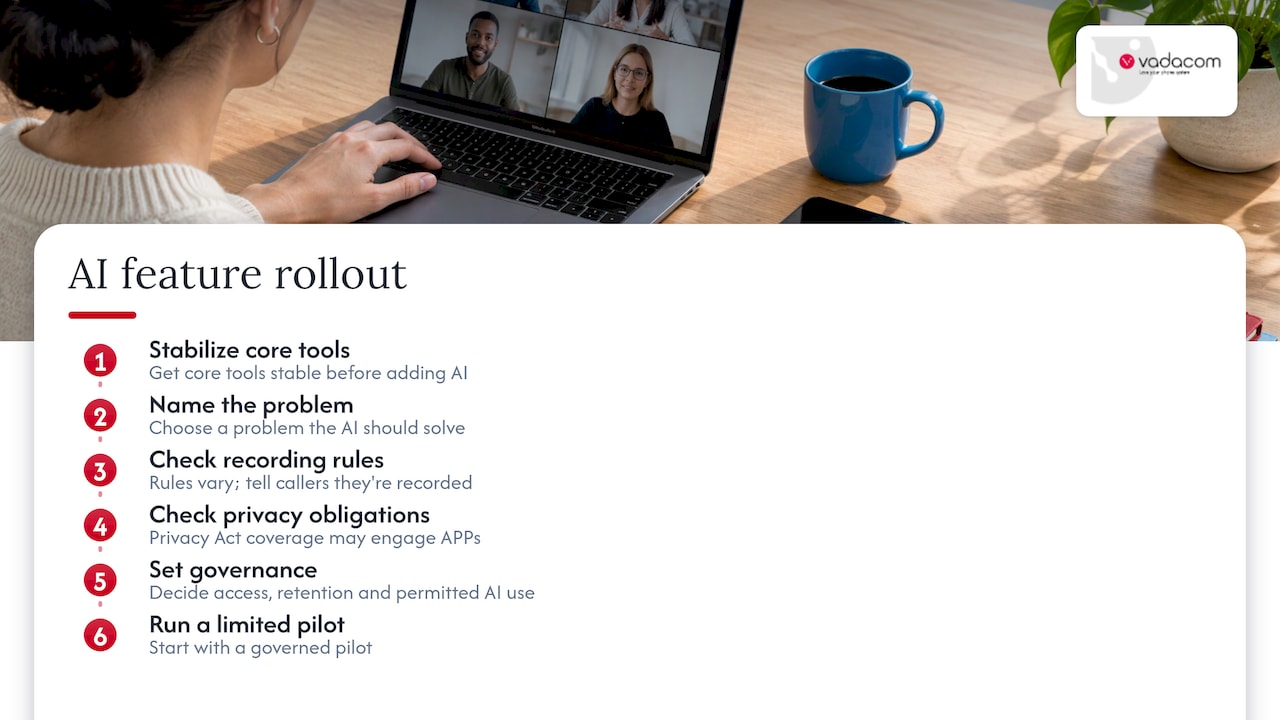
AI in collaboration and phone tools now covers meeting summaries, call transcription, call analysis and answering services that greet callers. The sensible order is to get the core tools stable first, then add AI where you can name the problem it solves, such as missed calls after hours or no visibility of why customers call.
Before you rely on any AI that records or transcribes calls, check two things.
Recording rules. Recording private conversations is regulated by state and territory laws in Australia, and the rules are not identical across the country. A law firm’s checklist on AI call transcription also notes that if your business is covered by the Privacy Act 1988 (Cth), using an AI transcription tool may engage the Australian Privacy Principles. Because your callers may be in another state, get advice from a lawyer on your own situation and tell callers they are being recorded.
Governance. Decide who can listen to recordings, how long they are kept and what the AI is allowed to do with them. Start with a limited pilot, which is the approach in our article on why AI call routing should wait for a governed pilot.
Our optional AI Call Intelligence is for customers who want deeper insight from call recording and analysis, and our locally supported AI answering service is for businesses that want calls answered consistently. You can read how this works for after-hours enquiries in our after-hours answering guide and in the piece on the AI auto attendant.
Perspective
We have spent more than 20 years designing, delivering and supporting communications for businesses in New Zealand and Australia, and the pattern we see in the way people talk about collaboration is consistent: the document tools get plenty of attention and the phone gets whatever is left.
That is backwards for most small businesses. A customer will forgive a late document. They rarely forgive a number that rings out. So we build NextVoice around the essentials people use every day: extension dialling, transfer, voicemail, in-app recording and call flows you can change yourself. We think a platform that does those things reliably and is easy for staff to pick up will beat a long feature list nobody opens.
NextVoice runs on a cloud architecture built on AWS across multiple availability zones, so you do not carry the cost and complexity of on-premise hardware or a large upfront investment. It scales as you add people, and you manage users and settings as your needs change.
And when something needs attention, you talk to a local team that knows your setup. For us that is the point of being local.
Stuart
How Vadacom can help
If your team needs calls, video, chat and desktop sharing that work the same in the office and at home, NextVoice is the platform we built for that. It gives you extension dialling, call transfer, voicemail, in-app recording and individual call flows, with self-service administration so you can add users and change settings yourself. NextMobile extends it to staff on mobile. If you still run an older on-premise system, our technical audit is the starting point for a move to the cloud.
See the NextVoice and NextMobile page for the detail, or start from the technical audit if you are replacing existing hardware. For a quick overview of how our cloud phone suits smaller teams, read about the cloud business phone for SMBs.
A simple selection process
Pulling it together, here is a sequence you can follow in an afternoon.
- List the jobs. Write down the five things your team does together every week and where each one happens now.
- Mark the gaps. Circle the jobs that are slow, duplicated or dropped. Include missed or misrouted calls.
- Choose one tool per gap. Resist overlapping tools. Overlap means confusion about where to look.
- Check the security basics. Multi-factor authentication, roles, and who can remove access.
- Price a full year. Include users, storage, numbers, calls and admin time.
- Pilot with a small group. Two to four weeks with clear success measures.
- Train once, document once. A one-page guide beats a long manual.
A small business can usually settle on a content and chat tool plus a cloud phone system. That covers shared work, quick conversation and the customer-facing line, with a small admin load.
FAQ
What are cloud collaboration tools?
They are online tools that let people work together on documents, tasks, messages, meetings and calls without being in the same place. Because the data is held in the cloud, changes sync and everyone sees the same version. They suit teams split across offices, homes and job sites.
Do I need a cloud phone system as well as a collaboration suite?
If customers reach you by phone, yes, it is worth treating voice as its own piece. A cloud phone system manages your business number, extensions, transfers, voicemail, recording and call flows. It gives staff the same way of taking calls wherever they work. Our NextVoice platform is built for this.
How much do cloud collaboration tools cost?
It varies widely. Many tools offer a free tier and paid plans charged per user per month, and annual billing is usually cheaper than monthly, according to TechRadar’s guide. Add storage, phone numbers, call charges and admin time for a true yearly figure. Our NextVoice price is not published, so ask us for a quote based on your user count.
How do I keep a collaboration setup secure?
Start with multi-factor authentication, keep software updated and back up your information, which are the three starting measures in the Australian Cyber Security Centre’s guide. Then set roles so people only see what they need and remove access promptly when staff leave.
Can I use AI to record and analyse calls?
Yes, with the right setup. Recording rules differ by state and territory, and the Privacy Act may apply to your business, so tell callers they are recorded and take advice from a lawyer on your case. Our optional AI Call Intelligence is designed for customers who want deeper insight from recorded calls.
Sources
- TechTarget: cloud collaboration
- TechRepublic: 8 Best Online Collaboration Software for Teams
- Built In: Team Collaboration Tools
- Australian Cyber Security Centre: Small business cyber security guide
- TechRadar: How to choose a team collaboration tool
- ASA team: Team collaboration tools guide
- TechRepublic: Slack Review
- Sprintlaw: AI call transcription privacy checklist
- QuantiFlow: SaaS implementation checklist
- Project management tools comparison