
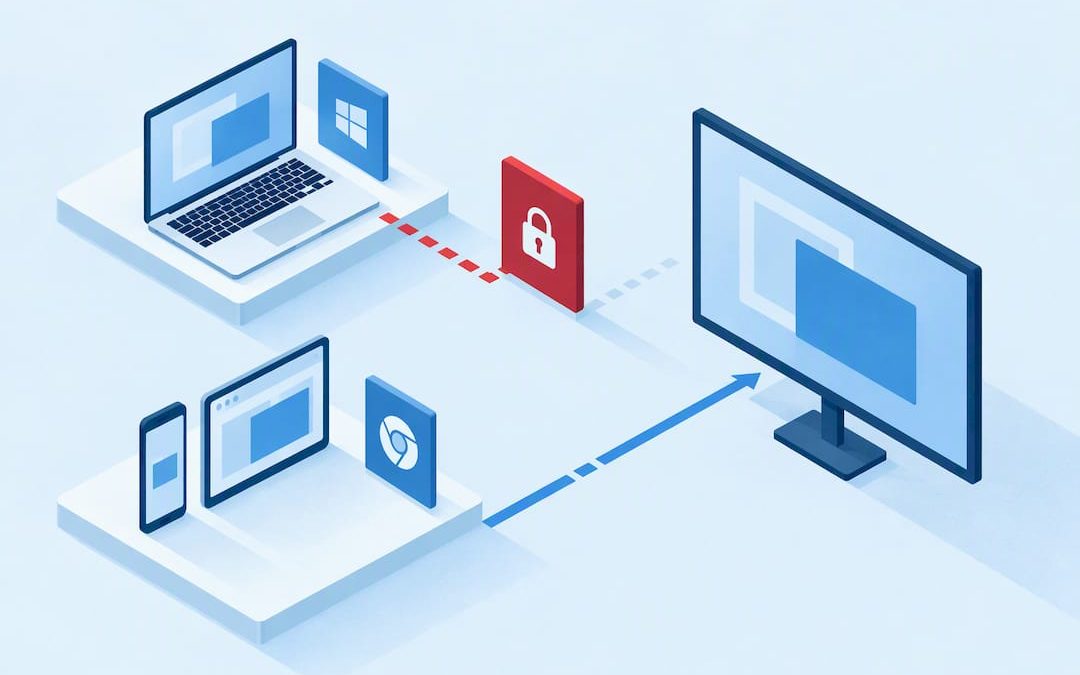
Most screen sharing failures fix with a restart and re-granting your operating system or browser screen permissions. Before that, check who’s hosting the meeting and what app you’re using, since the fix differs slightly between Zoom, Teams and Google Meet. The quick checklist below covers the fastest wins, with platform specific steps and deeper fixes further down if those don’t work.
TL;DR:
- After changing screen recording access, fully quit and reopen the app before rejoining; macOS changes do not apply when you merely rejoin.
- If the Share button is missing or disabled, ask the host to check participant permissions; account or group restrictions require an administrator.
- For blank or frozen captures, share the entire screen instead of a window, especially with PowerPoint presenter mode, video players, or demos with several apps.
- Browser sharing requires HTTPS and a direct user action; if the picker fails to open, disable extensions temporarily or test another browser.
- When permissions are correct but sharing is blank, laggy, or dropping, disconnect from VPN and retest; wired connections can help when bandwidth is limited.
Table of Contents
- Quick checklist: 8 things to try right now
- Check and fix permissions on macOS, Windows, browsers and mobile
- Browser quirks: getDisplayMedia, transient activation and common errors
- Network and hardware checks: VPNs, bandwidth and multiple monitors
- Why whole-screen sharing beats sharing a single window or tab
- Host, admin and meeting settings that block sharing
- How to test a share and confirm it’s working
- When to contact support and what a locally supported provider can offer
- An engineer’s view on why these failures keep happening
- If you need dependable meeting and support, here’s how we help
- FAQ
- Sources
- Primary sources and official troubleshooting guides
Quick checklist: 8 things to try right now
Run through these before digging into settings menus. Most screen sharing problems clear up in the first four steps.
- Restart the app and, if that fails, restart your device.
- Close the browser completely (not just the tab) and reopen it.
- Update or reinstall the app, or clear your browser’s cache and cookies if you’re using a web version.
- Check your operating system and browser permissions for screen recording, then re-grant and restart.
- Confirm the meeting host has allowed participants to share, or ask for co-host access.
- If a shared window looks blank, switch to sharing your entire screen instead.
- Temporarily disconnect from any VPN and test your connection.
- Close other screen capture tools (recording software, overlay apps) and try an alternate browser or the native desktop client.
Check and fix permissions on macOS, Windows, browsers and mobile
Permission settings are the single biggest cause of screen sharing failures, and each platform handles them differently.
- macOS: go to System Settings > Privacy & Security > Screen & System Audio Recording, enable the toggle for your browser or app, then fully quit and reopen it. Google Meet’s troubleshooting guide confirms the change only takes effect after a full restart, not just rejoining the call.
- Windows: open Settings > Privacy & Security > Screen recording (or App permissions), make sure the relevant app or browser is allowed, then restart it.
- Browsers: when the media picker appears, select a screen or window to grant permission; if sharing was previously denied, clear the site’s permissions in your browser settings and try again.
- Mobile: on iOS, enable screen sharing through Control Centre or the in-app share prompt; on Android, accept the capture permission dialog when it appears.
After changing any permission, the sequence that works reliably is: change the setting, restart the app, then rejoin the meeting.
Pro Tip: If you need to escalate to IT, take a screenshot of your permission settings first. It saves a round of back-and-forth.
Browser quirks: getDisplayMedia, transient activation and common errors
Web based screen sharing runs on the browser’s getDisplayMedia() API, which comes with strict rules. According to MDN’s documentation, it requires a secure context (HTTPS) and transient activation, meaning the share must start from a direct user action like a click, not an automated script. Miss either condition and the browser throws an error instead of opening the picker.
These errors map to specific causes:
- NotAllowedError usually means permission was denied, either by you or a prior browser setting.
- InvalidStateError points to an inactive or non-secure context, often a page that isn’t served over HTTPS.
- NotReadableError suggests a hardware or driver conflict blocking the capture.
Browser extensions, hardware acceleration settings and stale browser profiles can all prevent the picker from opening at all. If the share dialog never appears, try reloading via chrome://restart, disabling extensions temporarily, or switching to a different browser entirely.
Network and hardware checks: VPNs, bandwidth and multiple monitors
When permissions are correct but the share is blank, laggy or drops out, the cause is usually network or hardware, not software. VPNs and corporate quality of service (QoS) policies can interfere with real time media streams, according to Google’s networking troubleshooting guide, even when every setting looks fine on your end.
- Disconnect from any VPN and retest, since many “phantom” sharing failures are actually network issues.
- Prefer a wired connection over Wi-Fi for important shares, particularly if bandwidth is limited.
- Multiple monitors or sudden display mode changes can produce a blank or partial share if the app loses track of which screen to capture.
- Close GPU heavy apps that might be competing for display resources, and try sharing from a different device to isolate the cause.
If QoS misconfiguration is a recurring issue in your office, our QoS guidance for VoIP and real time traffic covers the bandwidth settings worth checking.
Why whole-screen sharing beats sharing a single window or tab
Sharing a specific window seems tidier, but it’s the more fragile option. If the app you’re demoing spawns a sub-window, switches to full-screen mode, or changes process context (common with media players and some presentation software), the capture can lose track of what it’s meant to be showing. Viewers see a blank or frozen frame while you keep talking.
- PowerPoint in full-screen presenter mode and most video players are the classic culprits for blank-looking shares.
- Browser tab sharing works well for web content and lets you include system audio, useful for playing video clips.
- For complex demos involving multiple windows, share your entire screen rather than a single app window.
- Where available, use app-native presentation modes (like PowerPoint Live in Teams) instead of generic screen capture.
Host, admin and meeting settings that block sharing
Sometimes the problem isn’t your device at all. Hosts and account administrators can lock screen sharing at the meeting or organisation level, and Zoom’s support documentation confirms this is a deliberate, configurable setting rather than a bug.
- If the Share button is missing or greyed out, ask the host to check participant sharing permissions for that meeting.
- If it’s still blocked, the restriction is likely set at account or group level, which only an administrator can change.
- When requesting a change, give the admin the exact meeting type, your role, and the error or missing option you’re seeing.
- As a quick test, join a different meeting with another host, or create a brand new meeting with default settings to see if sharing works there.
How to test a share and confirm it’s working
Don’t assume a share is working just because your screen looks right. Verify it properly before anything important depends on it.
- Start a test meeting, share your whole screen, and ask a colleague to confirm what they can see.
- Where the app offers a “what attendees see” preview, use it to self-check before going live.
- If the second device also shows a failure, the fault is on the host side.
- If it still fails, note your exact app, browser and OS versions, plus a screenshot or short screen recording, before contacting support.
When to contact support and what a locally supported provider can offer
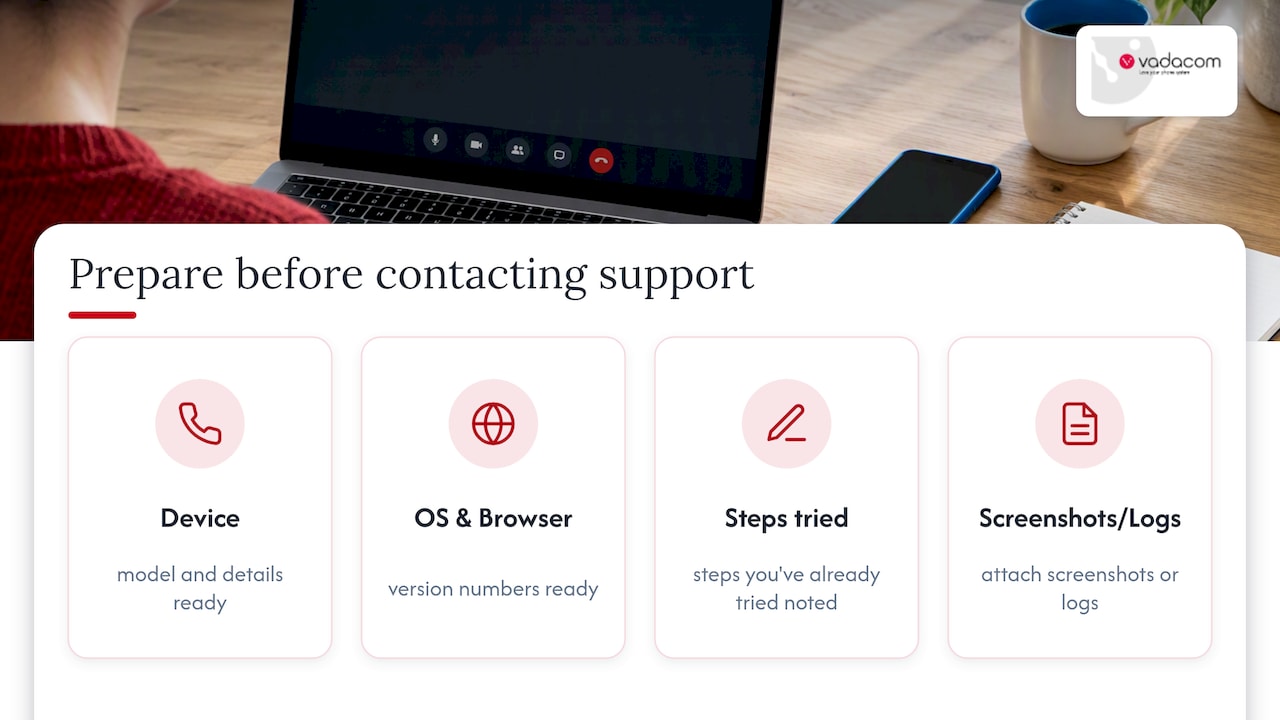
Persistent permission-state mismatches, account-level policy locks and unresolved network or QoS issues are worth escalating rather than troubleshooting indefinitely. Before contacting support, have your device, OS and browser versions ready, along with the steps you’ve already tried and any screenshots or logs.
For businesses juggling this across multiple meeting apps and devices, having a provider who understands your specific setup matters. We offer a platform running on resilient, multi-availability-zone cloud architecture, and support that can walk through configuration issues directly rather than pointing you to a generic help article.
An engineer’s view on why these failures keep happening
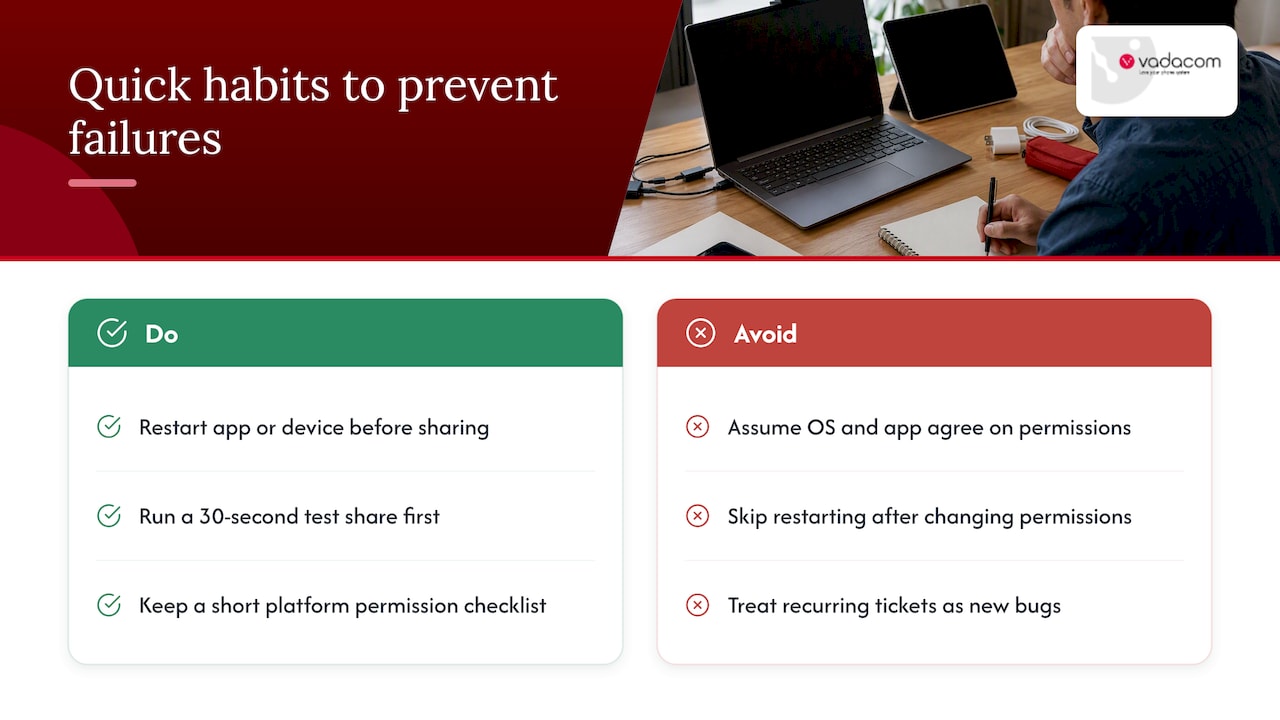
Most repeat screen sharing failures come down to what’s best described as a permission-state mismatch: the operating system thinks access is granted, but the browser or app is still running on an older, cached version of that permission. A full restart forces both sides to re-check and agree, which is why “turn it off and on again” genuinely works here more often than it should.
The habit worth building isn’t a deep fix, it’s a routine. Presenters should do a thirty-second test share before anything high-stakes, and IT teams should keep a short checklist of the permission paths for each platform they support. Most recurring tickets come from the same two or three settings, not new bugs.
— Stuart
If you need dependable meeting and support, here’s how we help
Screen sharing breaks for a lot of reasons that have nothing to do with your skill at troubleshooting: permission resets, VPN conflicts, admin locks. For businesses that rely on video meetings daily, that adds up to lost time and frustrated teams.

We offer a platform that combines voice calling, video meetings and desktop sharing in one solution, backed by cloud infrastructure designed to stay stable even as teams grow or change how they work. Our support team can assist with configuration issues directly.
- Voice, video and desktop sharing in one platform rather than several disconnected apps.
- Resilient, multi-zone cloud architecture designed to limit outages and downtime.
- Support available to help with permission or policy issues as needed.
- Optional advanced call intelligence features for teams seeking deeper insights from call recordings.
If recurring meeting or connectivity issues are becoming a pattern in your business, our technical audit service can look at what’s actually causing them. You can also explore the NextVoice platform directly to see what’s included.
FAQ
Why won’t my iPhone let me share my screen?
This is usually a permissions or Control Centre setup issue rather than a fault with the app itself. Check that screen recording is added to Control Centre and that the app you’re using has been granted screen sharing access in Settings, then restart the app.
Why won’t my computer let me share my screen?
The most common cause is a missing or stale operating system permission, particularly on macOS where screen recording access must be granted per app under Privacy & Security settings. According to Google Meet’s troubleshooting guide, the fix only takes effect after you fully restart the app, not just reopen the meeting window.
How do I enable screen sharing?
Grant your browser or app permission to record the screen in your operating system’s privacy settings, then restart it so the change applies. Once that’s done, most meeting platforms let you start a share directly from the toolbar, provided the host hasn’t restricted sharing for participants.
Why isn’t my screen mirroring working?
Screen mirroring failures are often caused by network issues, outdated apps, or a mismatch between what the operating system allows and what the app has actually registered. Try restarting both devices, confirming they’re on the same network, and checking for pending app updates before assuming it’s a hardware fault.
Sources
- Troubleshoot screen-sharing issues in Google Meet – Google Meet Help
- MediaDevices: getDisplayMedia() method – MDN Web Docs
- Present content in Microsoft Teams meetings | Microsoft Support
Primary sources and official troubleshooting guides
- Present content in Microsoft Teams meetings | Microsoft Support
- MediaDevices: getDisplayMedia() method – MDN Web Docs
- Troubleshoot screen-sharing issues in Google Meet – Google Meet Help
- Troubleshoot networking issues in Google Meet – Google Support