
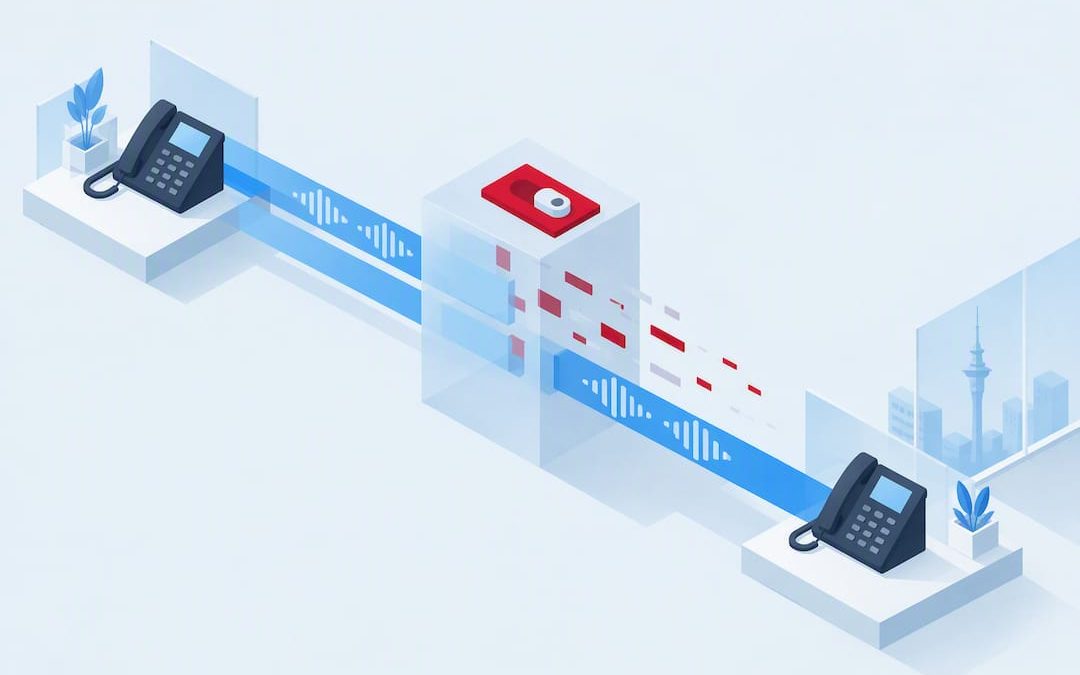
Disable SIP ALG when your phones show one-way audio, failed registrations, or dropped transfers, because the feature was built for older NAT setups and now conflicts with the way modern VoIP handles NAT traversal. It’s not a maintenance chore. It’s a fix for a known cause of call quality problems. Once you’ve confirmed the symptoms match, jump to the device-specific steps below and turn it off.
TL;DR:
- Disabling SIP ALG is essential for resolving VoIP issues such as one-way audio, failed registrations, and dropped transfers, especially on modern networks.
- Most consumer and ISP routers have SIP ALG enabled by default, often rewriting headers in ways that cause call failures and inconsistent behavior after firmware updates.
- It is crucial to verify the change by re-registering SIP endpoints and capturing network traffic to confirm that header rewriting has ceased before concluding the fix.
- On routers without a clear SIP ALG toggle, putting ISP gateways into bridge mode or deploying a session border controller provides a reliable alternative solution.
- Regularly reviewing the network setup after disabling SIP ALG prevents regressions, and consulting vendor documentation ensures proper, low-risk adjustments.
Table of Contents
- What is SIP ALG and why does it break modern VoIP?
- What symptoms point to SIP ALG interference?
- What precautions should you take before changing settings?
- How do you disable SIP ALG step by step?
- Where do you find the SIP ALG toggle on common routers and firewalls?
- How do you verify SIP ALG is really switched off?
- What if your router has no SIP ALG toggle?
- When should you request a technical audit?
- What actually separates a quick fix from a lasting one here
- Get expert help fixing SIP ALG and VoIP network issues
- Sources
- FAQ
What is SIP ALG and why does it break modern VoIP?
SIP ALG stands for Session Initiation Protocol Application Layer Gateway, a feature built into most consumer and business routers. It inspects SIP signalling and the Session Description Protocol (SDP) data inside voice packets, then rewrites parts of them, things like IP addresses and port numbers in the Via, Contact, and SDP fields, to help calls punch through Network Address Translation (NAT).
That job made sense fifteen years ago. Early VoIP phones and software had clumsy NAT handling, and a router that could quietly patch SIP headers on the fly solved a genuine problem. Since then, the industry moved on. Techniques like STUN, TURN, and ICE, along with session border controllers (SBCs) run by VoIP providers, now handle NAT traversal far more reliably than a router guessing at header rewrites ever could. SIP ALG frequently becomes redundant or actively harmful once a provider’s own infrastructure is doing that traversal work properly.
The trouble is that ALG doesn’t know when to stop helping. It keeps rewriting headers regardless of whether your phone system needs it, and that’s where things go wrong:
- It can alter the Contact and Via headers so the far end sends responses to the wrong address.
- It can rewrite SDP media descriptions, causing the two sides of a call to disagree on which port audio should arrive on.
- It can strip or duplicate headers during retransmissions, confusing SIP state machines on both the phone and the provider’s SBC.
- It applies these changes inconsistently across firmware versions, so a router that worked fine last month can start mangling calls after an update.
Most consumer and ISP-supplied routers ship with SIP ALG turned on by default, which is exactly why it’s worth checking first whenever a new VoIP deployment behaves oddly.
What symptoms point to SIP ALG interference?
Run through this checklist before you touch any settings. If two or more of these match what you’re seeing, SIP ALG is a strong suspect.
- One-way audio. One party hears the other, but not vice versa, especially common on calls that cross from your network to an external mobile or landline. This happens because ALG rewrote the SDP media port on one leg of the call but not the other, so RTP packets get sent to a port nobody’s listening on.
- Intermittent or failed SIP registration. Phones register fine after a reboot, then silently drop off the registrar an hour later, or fail to re-register until you manually restart them.
- Calls that drop during transfer or hold. A call connects normally, but the moment someone puts it on hold or transfers it, audio disappears or the call ends outright. ALG often mishandles the re-INVITE messages that transfers and hold rely on.
- Mangled headers visible in SIP logs. If you pull logs from your PBX or provider portal and see Contact or Via headers referencing an internal private IP address (like 192.168.x.x) that got exposed externally instead of being correctly translated, that’s ALG’s fingerprints.
None of these symptoms are exclusive to SIP ALG, but together they’re the clearest signal you’ll get without a packet capture.
What precautions should you take before changing settings?
Before you open your router or firewall admin panel, take a few minutes to protect yourself against a bad afternoon.
- Export or screenshot your current configuration, especially firewall rules, port forwards, and any existing SIP-related settings, so you can roll back cleanly if something unexpected happens.
- Schedule the change for a maintenance window, even a short one. Voice services are unforgiving of surprise outages during business hours.
- Confirm you have console or out-of-band access to the device in case the web GUI becomes unreachable after a config change.
- Resist the urge to disable connection tracking, packet normalisation, or other unrelated firewall inspection features as a substitute fix. Workarounds like iptables NOTRACK rules are unreliable because they don’t actually stop the header rewriting that’s causing your problem, and they can quietly weaken your firewall’s broader protection.
- If your UDP timeout is set aggressively low, consider raising it. Many VoIP vendors recommend UDP timeouts in the range of 60 to 120 seconds to avoid killing SIP sessions during natural silence in a call.
Pro Tip: Take a baseline packet capture before you disable anything. Comparing “before” and “after” captures is the only way to prove the ALG was actually the cause, rather than something else that happened to change at the same time.
How do you disable SIP ALG step by step?
The exact menu names differ by vendor, but the underlying procedure is the same everywhere. Work through it in this order:
- Log into the router or firewall’s admin interface, either the web GUI or the command line, using an account with configuration privileges.
- Locate the ALG, SIP passthrough, or SIP transformations setting. It’s often buried under Advanced, WAN Setup, Security, or Application Layer Gateway, depending on the brand.
- Disable the setting, apply the change, and reboot the device. Some platforms apply ALG changes live; most enterprise firewalls need a reboot or service restart before the change takes full effect.
- Force every SIP endpoint to re-register. Restart phones, soft clients, and any PBX trunks so they establish fresh registrations rather than relying on cached, potentially mangled session state.
- If no ALG toggle exists on your device, don’t start disabling unrelated firewall features to compensate. Skip ahead to the fallback options covered further down.
That’s the whole shape of it. The rest of this guide is about finding where that toggle actually lives on the hardware you’ve got.
Where do you find the SIP ALG toggle on common routers and firewalls?
Every vendor buries this setting somewhere slightly different. Here’s where to look and what to run on the platforms you’re most likely to be managing.
Netgear. On most consumer and small business Netgear routers, go to Advanced, then WAN Setup, and untick Disable SIP ALG (worded as a checkbox to disable it, so read carefully). Netgear’s own knowledge base confirms this is the standard path across current firmware.
UniFi and UDM. Location varies by firmware version. On older UniFi Network application releases, it sits under Settings, Internet, WAN, Advanced Configuration. On newer UDM and UDM Pro builds, check Settings, then Internet, then look for Advanced options tied to the specific WAN interface. Ubiquiti has moved this setting more than once across firmware releases, so if you can’t find it where you expect, check the release notes for your current version.
EdgeRouter and EdgeOS. This one’s pure CLI. Drop into configuration mode and run:
configure
set system conntrack modules sip disable
commit
save
reboot
The reboot isn’t optional here. EdgeOS loads the conntrack SIP helper at boot, so a commit and save without a reboot leaves the old module active.
FortiGate. FortiGate calls this SIP session helper or SIP ALG interchangeably depending on firmware. Disable it with:
config system settings
    set sip-helper disable
end
You may also need to remove the SIP session helper from the relevant firewall policy if it’s referenced there directly. Fortinet’s own community documentation notes that re-enabling SIP inspection later can require a restart to take effect cleanly, so don’t assume toggling it back on is instant either.
Palo Alto Networks. Palo Alto handles this through App-ID rather than a simple checkbox. Navigate to Objects, then Applications, search for “sip,” and use the Customize option under ALG to disable it for that application, then commit the change.
Palo Alto’s own guidance is specific on this point: disable only the SIP ALG control itself, not the broader App-ID or threat detection tied to that application, because losing full App-ID visibility trades one problem for a bigger one.
Their documented procedure for disabling the SIP ALG walks through this exact customisation step.
Cisco IOS. Cisco routers running NAT with a SIP helper use a different command entirely:
no ip nat service sip udp port 5060
Cisco’s NAT support for SIP documentation covers the related NAT service commands and interactions with existing NAT rules, worth a read before you touch a production router.
SonicWall, TP-Link, and MikroTik. SonicWall exposes this under VoIP settings in the management GUI, usually a straightforward “Enable consistent NAT” or SIP-specific checkbox to untick. TP-Link routers list it under Advanced, then NAT Forwarding or Security, depending on model. MikroTik via WinBox uses a firewall service port setting; the CLI equivalent is:
/ip firewall service-port disable sip
ISP-supplied gateways. Plenty of ISP modem-router combos hide this setting entirely, or expose it only through a locked-down interface you can’t fully access. In that case, ask your provider to either disable it remotely or, better, switch the device into bridge mode or IP passthrough so your own router handles all NAT and firewall duties instead.
How do you verify SIP ALG is really switched off?
Turning off the setting isn’t the finish line. Confirm it actually changed behaviour before you call the job done.
- Reboot the affected router or firewall, then force every phone, soft client, and PBX trunk to submit a fresh SIP registration rather than relying on old session state.
- Test in all directions: inbound calls, outbound calls, transfers, and putting a call on hold. These are the exact scenarios where mangled headers cause failures.
- Run a packet capture on both the LAN and WAN side of the router during a test call, then compare the Contact, Via, and SDP fields. Comparing before-and-after captures is the definitive way to confirm the header rewriting has actually stopped, rather than just assuming the toggle worked.
- Check RTP flow quality directly, jitter and packet loss figures from your PBX’s call quality reports or a dedicated VoIP test tool will tell you if audio is arriving cleanly now.
If the symptoms are gone, document exactly what you changed and keep an eye on call quality metrics for the next week. Problems caused by firmware auto-updates re-enabling ALG are more common than most admins expect.
What if your router has no SIP ALG toggle?
Some routers, particularly older ISP-supplied units, don’t expose this setting anywhere, locked GUI or otherwise. You’ve got three real options.
- Put the ISP gateway into bridge mode or enable IP passthrough, then let a separate, VoIP-friendly router or firewall handle all NAT and firewall duties instead.
- Deploy a session border controller (SBC) in front of your phone system, purpose-built to manage SIP NAT traversal without the guesswork a consumer router applies.
- Contact your ISP directly and ask them to disable SIP ALG on their side, some providers can do this remotely even when the customer-facing interface hides the option.
Pro Tip: If your network has double NAT, a site-to-site VPN, or layered firewalls between the phones and the internet, don’t chase this fix alone. Complex topologies hide the actual point of failure, and a proper network review will find it faster than trial and error.
When should you request a technical audit?
Escalate when disabling SIP ALG doesn’t fully resolve the issue, when you discover a hidden ISP gateway you can’t access, or when the network involves double NAT, VPN tunnels, or layered firewall rules that make the real point of failure hard to isolate alone.
When you raise a support ticket, include:
- A current configuration export from the router or firewall in question.
- Packet captures taken from both the LAN and WAN sides during a failed call.
- Phone or PBX logs with accurate timestamps matching the failed call attempts.
A technical audit typically covers a full network review, SBC placement recommendations where relevant, and routing fixes tailored to the environment rather than generic advice.
What actually separates a quick fix from a lasting one here
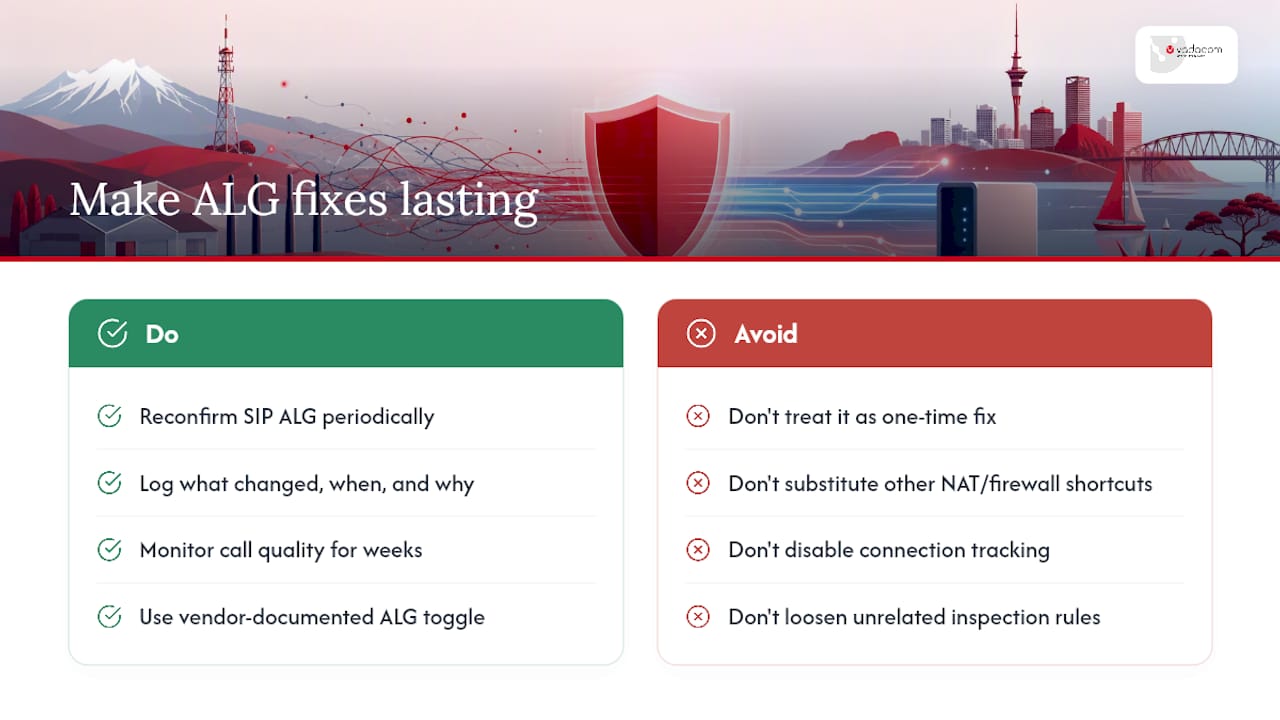
Most SIP ALG guides treat this as a one-line fix: flip the switch, problem solved. It usually is that simple, but the failure mode I see most often isn’t admins refusing to disable ALG. It’s admins disabling it once, confirming calls work that afternoon, and never checking again after the next firmware update quietly turns it back on.
The rule of thumb worth keeping: treat SIP ALG as a setting that needs periodic reconfirmation, not a one-time fix. Never substitute a genuine NAT or firewall workaround, disabling connection tracking, loosening unrelated inspection rules, for the specific ALG toggle your vendor actually documents. Those shortcuts trade a known, fixable problem for a vaguer, harder one. Write down what you changed, when, and why, then keep half an eye on call quality metrics for a few weeks afterward. That habit catches the quiet regressions before your users start complaining.
— Stuart
Get expert help fixing SIP ALG and VoIP network issues
Chasing router menus and firmware quirks across a dozen devices isn’t how most IT teams want to spend a week, and if your network has double NAT, VPN tunnels, or an ISP gateway that hides its own settings, a DIY fix can eat far more time than it saves. Vadacom runs technical audits for businesses that want a network reviewed properly rather than patched setting by setting, checking SIP ALG behaviour, NAT traversal, and firewall rules together, then recommending fixes that actually hold.

For businesses ready to move off ageing on-premise phone systems entirely, NextVoice runs on telco-grade cloud infrastructure designed to sidestep these NAT and ALG headaches from the outset, with local support behind it when something does need attention. If persistent call quality issues have you troubleshooting router settings more than you’d like, get in touch with Vadacom for a technical audit and find out what’s actually causing the problem.
Sources
For device-specific detail beyond what’s covered here, go straight to the source. Palo Alto’s SIP ALG disable procedure, Cisco’s NAT support for SIP documentation, and Netgear’s SIP ALG knowledge base article all stay current as firmware changes. Keep these bookmarked rather than relying on forum threads, which go stale fast.
- How to Disable SIP ALG: A Guide by Router Vendor
- How do I disable SIP ALG on my NETGEAR device using the router web interface?
FAQ
Should I disable SIP ALG for gaming?
No. SIP ALG affects SIP and VoIP signalling specifically, and it typically has no effect on gaming protocols. If you’re chasing gaming lag or connection drops, look at NAT type settings or UPnP instead, not SIP ALG.
What is the purpose of SIP ALG in a router?
SIP ALG was designed to help SIP-based VoIP calls traverse NAT by inspecting and rewriting signalling headers and SDP media information on the fly. Modern NAT traversal methods like STUN, TURN, and ICE, combined with provider-run SBCs, now handle this job more reliably, which is why SIP ALG has become largely redundant and sometimes disruptive on current VoIP deployments.
Is it safe to disable SIP ALG on a business network?
Yes, disabling SIP ALG through the vendor’s supported toggle is a routine, low-risk change on nearly every consumer and enterprise platform. Just avoid unsafe substitutes like disabling connection tracking or unrelated firewall inspection, and follow vendor-documented steps rather than forum workarounds.
What should I do if my router doesn’t have a SIP ALG setting?
Put the ISP-supplied gateway into bridge mode or IP passthrough and let a separate VoIP-friendly router handle NAT, or place a session border controller in front of your phone system. If the network is complex, a technical audit can identify the right fix faster than trial and error.